VDS on Windows stopped working after first launch
This guide helps troubleshoot connection issues with your VPS after allowing network discoverability. Follow the steps to adjust firewall settings and restore access.
If you’re reading this article, you may have encountered the following situation: After connecting to your VPS through Remote Desktop and entering your password, you received a pop-up message asking, ‘Do you want to allow your PC to be discoverable by other PCs and devices on this network? We recommend allowing this on your home and work networks, but not on public ones.’ If you chose ‘Yes,’ you likely lost the connection a few seconds later and couldn’t continue using the VPS.
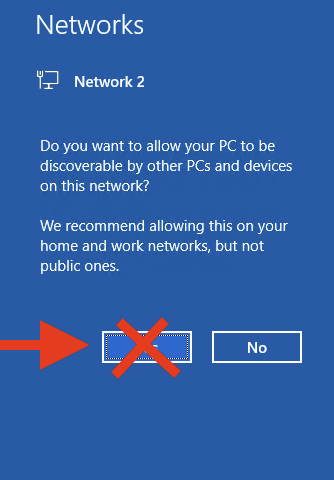
To solve this problem, follow the instructions below.
STEP 1
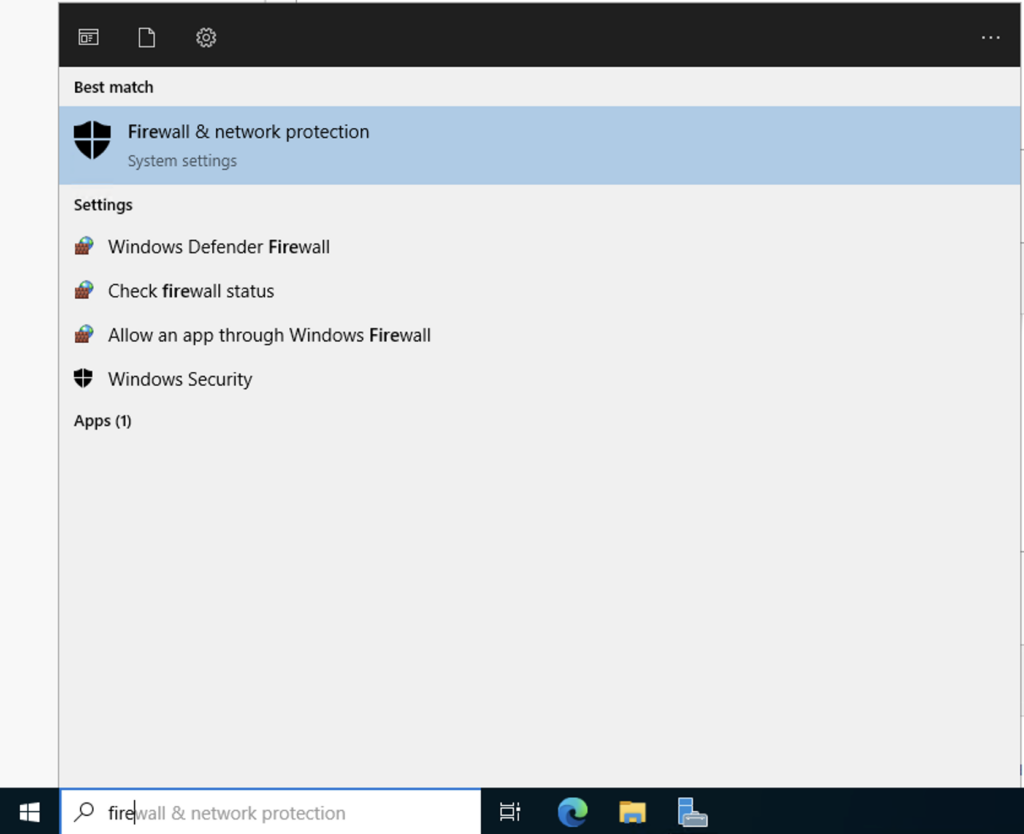
Access the machine via VNC. Click on the START menu. Type in “Firewall” and select Firewall and network protection.
STEP 2
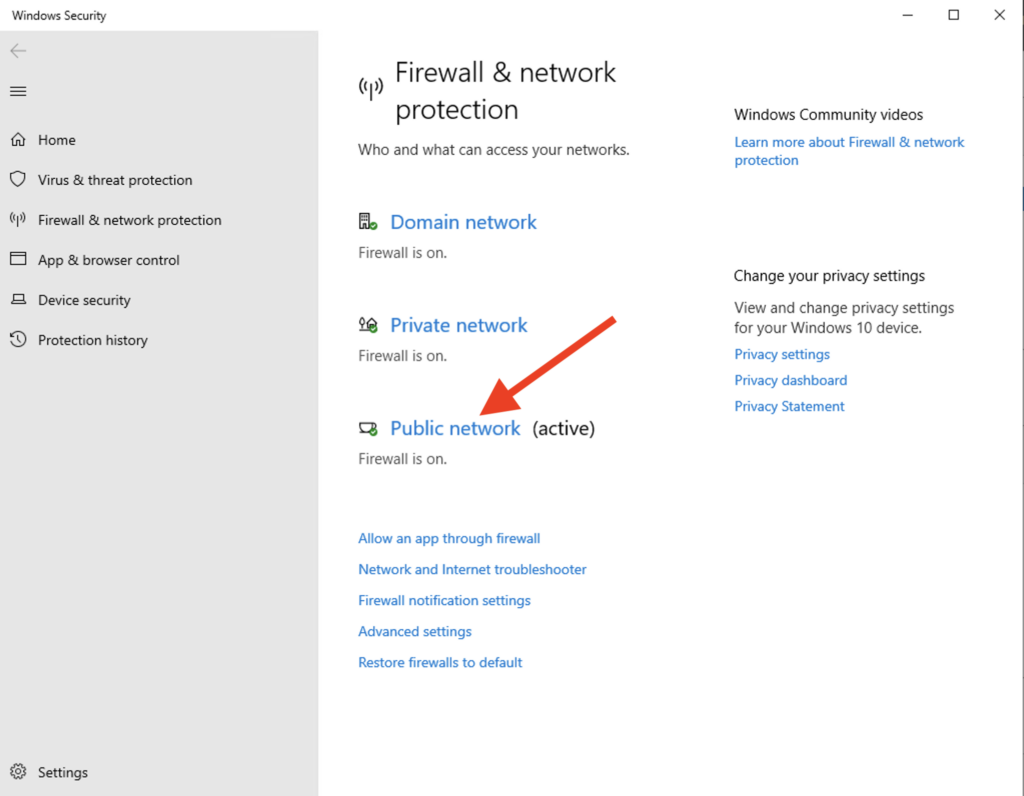
Click on “Public network”.
STEP 3
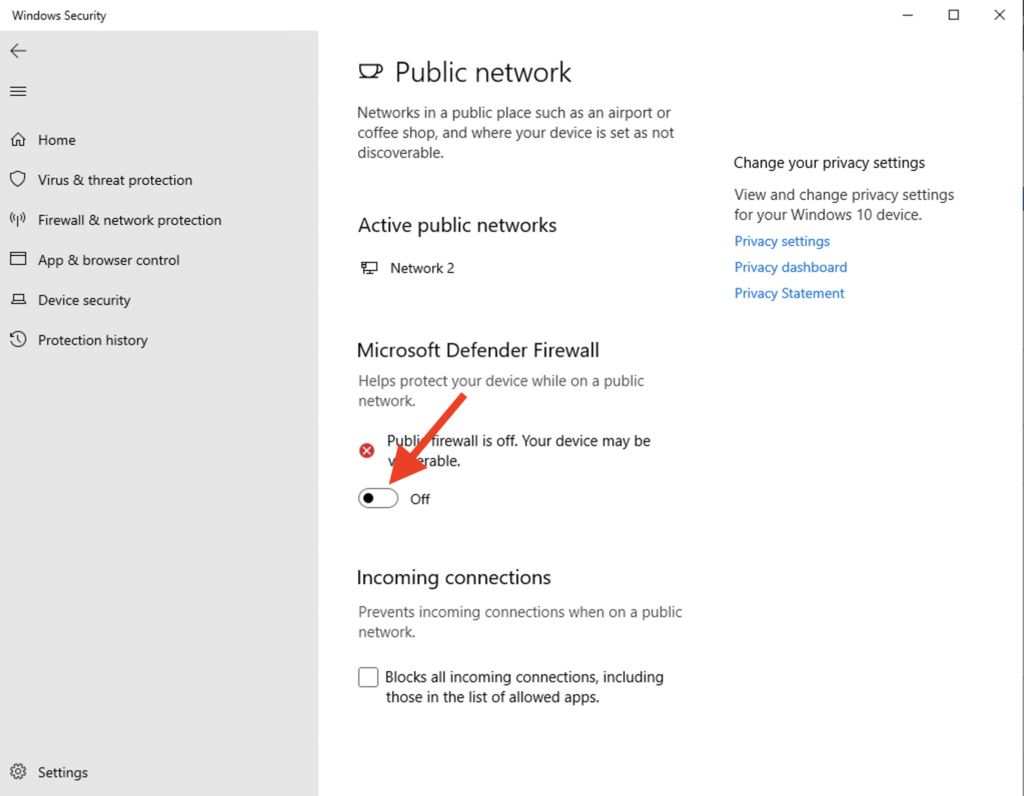
Switch it off.
Alternative method
STEP 1
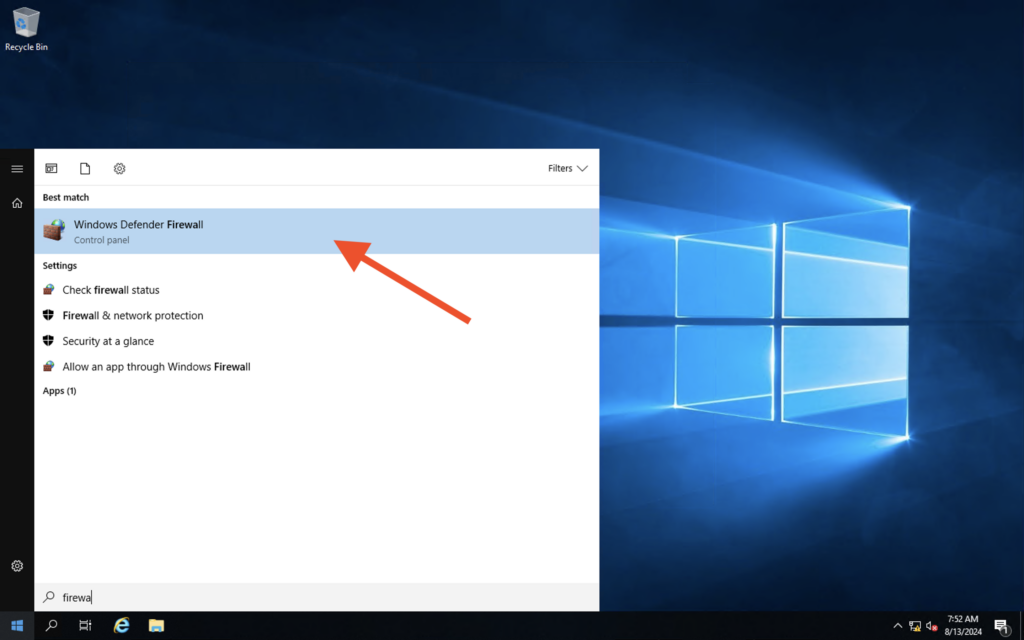
Open “Start Menu” and type in “Firewall”. Open “Windows Defender Firewall”.
STEP 2
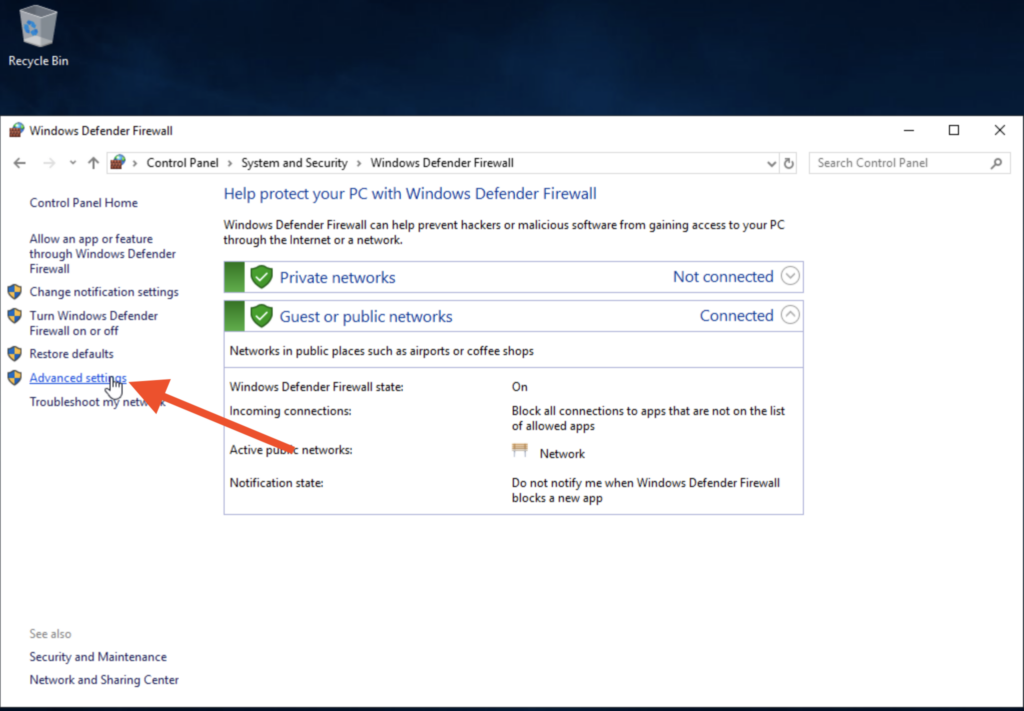
Go to Advanced Settings.
STEP 3
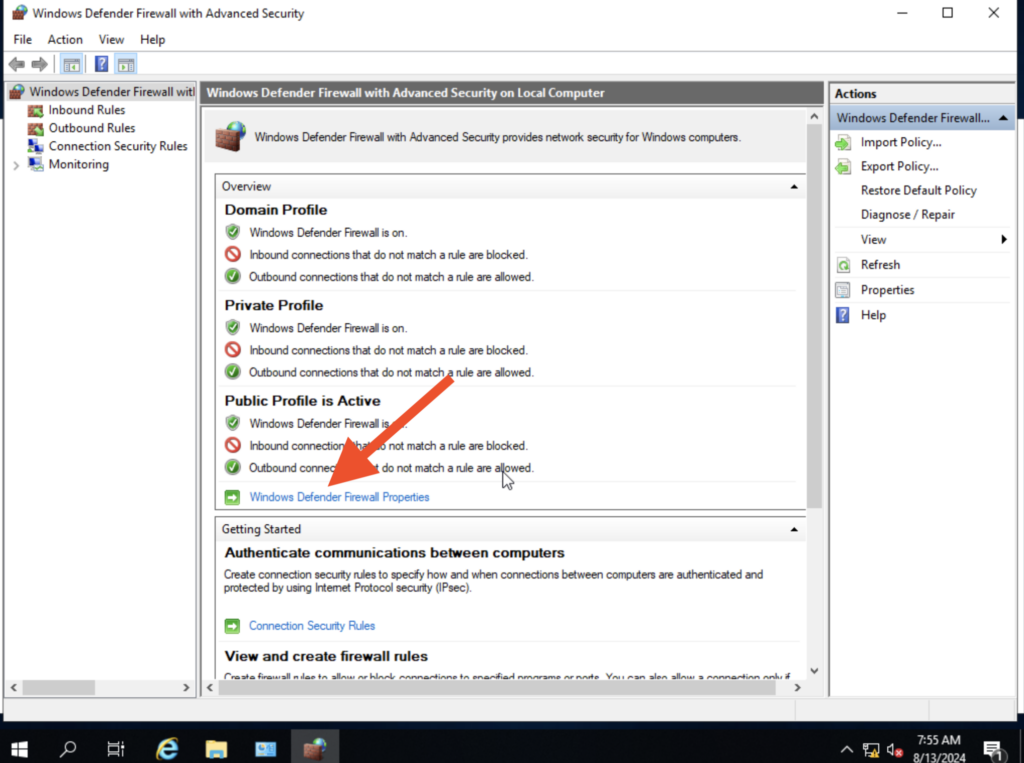
Click on “Windows Defender Firewall Properties”.
STEP 4
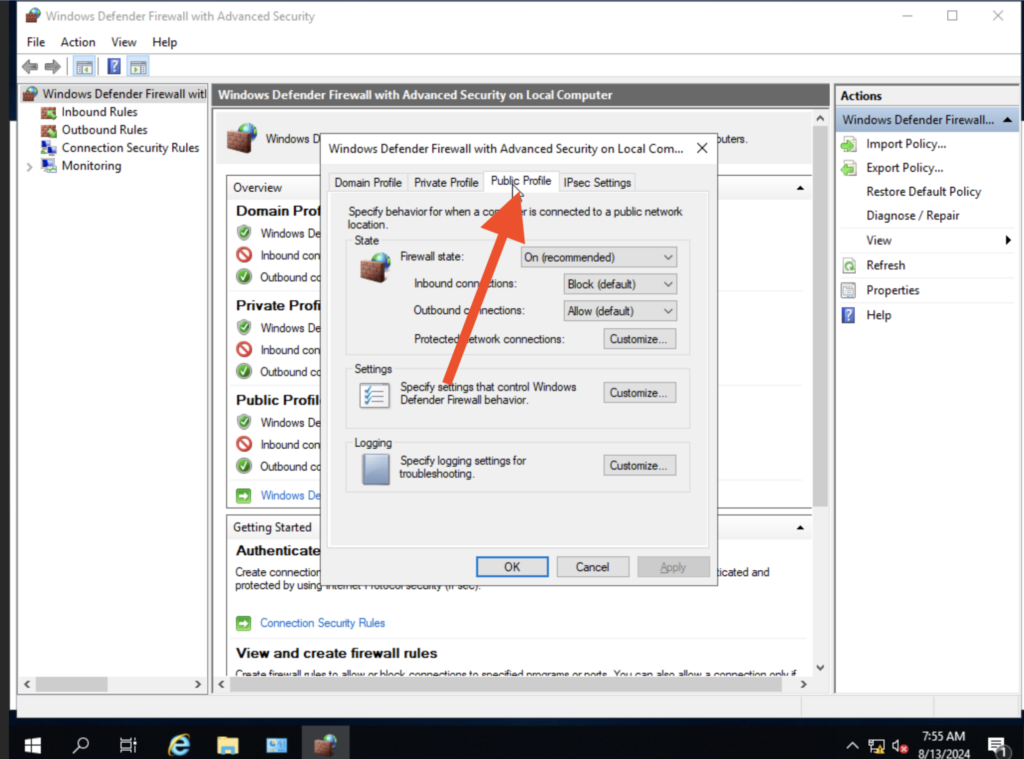
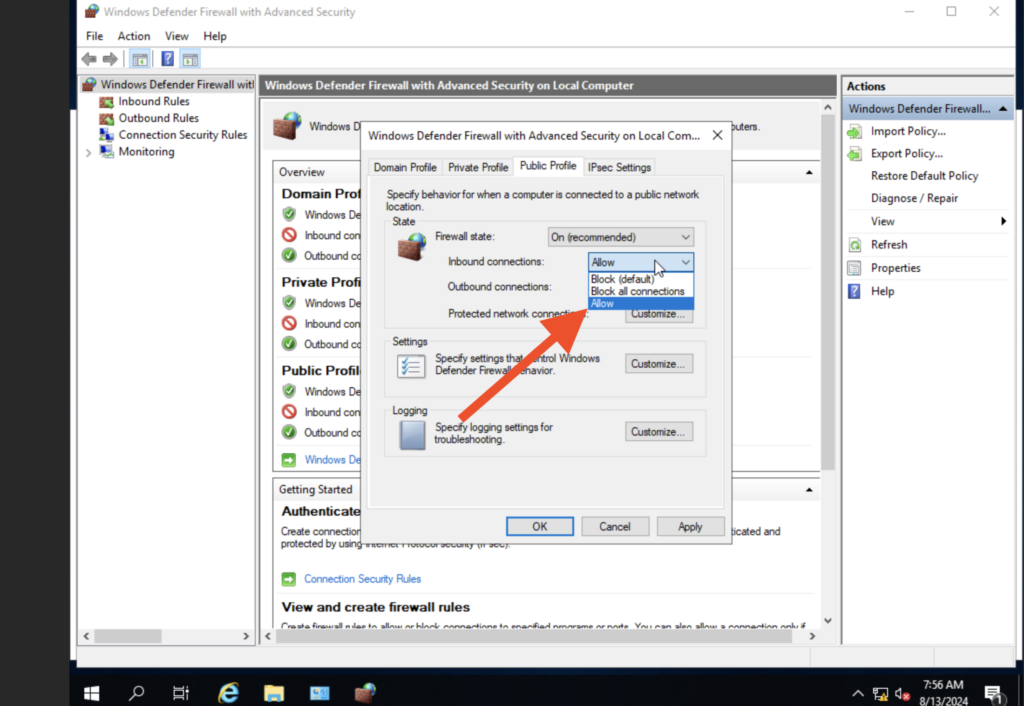
Go to “Public Profile”.
STEP 5
Change “Inbound Connections” to Allow.
Related Articles
Browse more articles in these categories.