Knowledge Base
Password reset
Follow these steps to reset your password on various services. Note that password reset is not possible on Windows.
Yaro
password reset itldc service management security
NOTE: You can’t reset the password on Windows.
STEP 1: Go to my.itldc.com.
STEP 2: Select a service that you want to change the password for.
STEP 3: Click on the “To Panel” button.
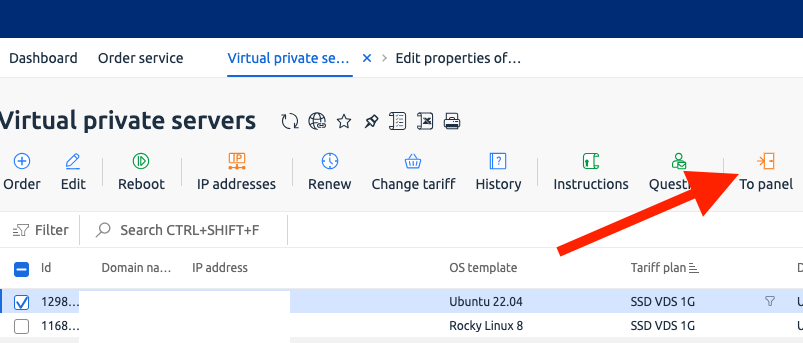
STEP 4: Click on the 3 dots (…) in the right part of the screen.
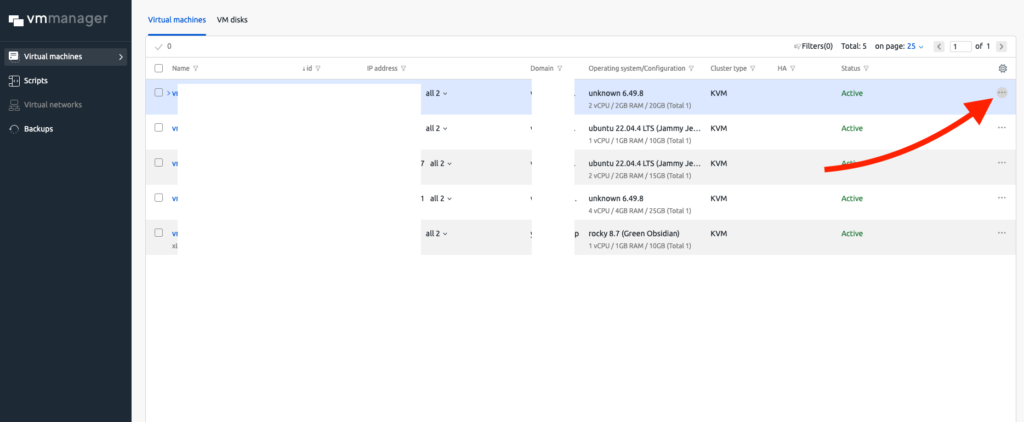
STEP 5: Click “Change Password”.
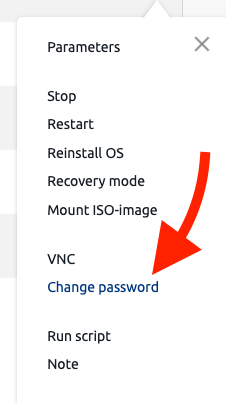
STEP 6: Enter the new password and save it!
NOTE: This method can work with operating systems that are available during service setup, but if you have installed another OS, please refer to the official documentation of your distribution.
Links to Official Documentations
- CentOS 8 & 9: Recover Root Password
- Ubuntu/Debian: Lost Password
Related Articles
Browse more articles in these categories.