I can't connect to my windows VPS, how to fix it?
This article guides you through troubleshooting connection issues with your Windows VPS, focusing on server status, network connection, firewall settings, and security measures.
Check Server Status
Firstly, let’s check if the server is working. Go to VMmanager and check server status. Use the VNC console to connect and ensure it is responsive. If the server isn’t operational, you’ll see this in the server status; attempting to connect via VNC will also yield no response. If the server isn’t working - restart it. If it’s operational, proceed to the next step.
Check Network Connection
Now we need to verify if the server is connected to the network. To do this, copy your IP and RDP (which by default, is 3389). Visit https://check-host.net/ and paste the IP in the “Hostname or IP address” field.
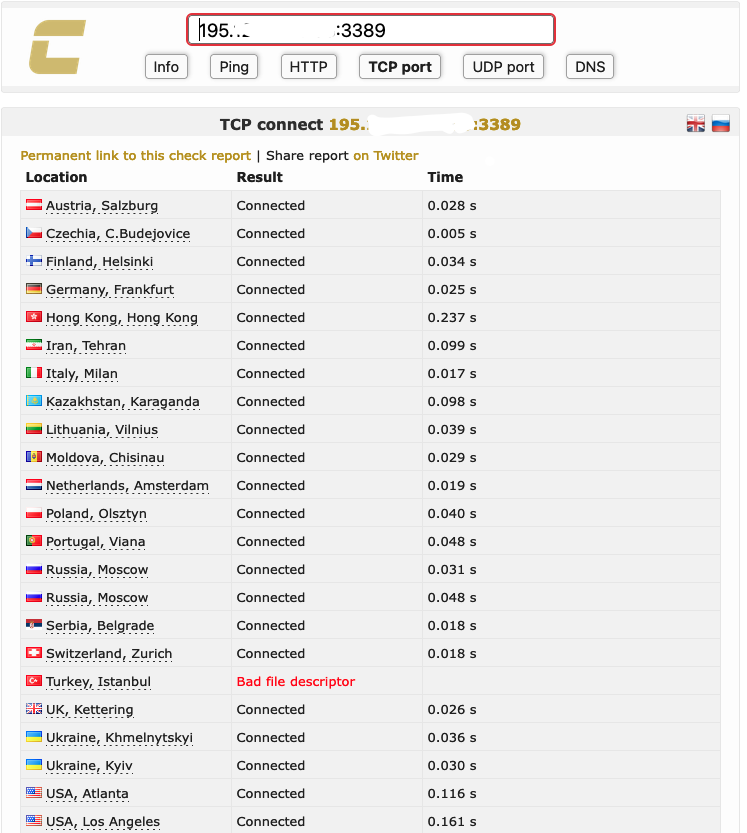
If you see a message indicating availability, your server is accessible over the network. If you see “Connection timed out”, then your server isn’t available.
Firewall
One possible issue with connecting to a server is the firewall, specifically incorrect firewall settings. To resolve this, connect to the server using VNC, go to the “Windows Firewall and Advanced Security” settings, and in “Inbound Rules”, allow the remote desktop connection.

Security Issues
If you are sure you remember the password and have not altered firewall settings, the issue may be weak security. A common problem is excessive login attempts. The solution in most cases is to change the RDP port. The default port is 3389; consider changing it to a non-standard one. For guidance, refer to this article - How to change RDP port in Windows.
Additionally, ensure your system is updated and that you use strong passwords.
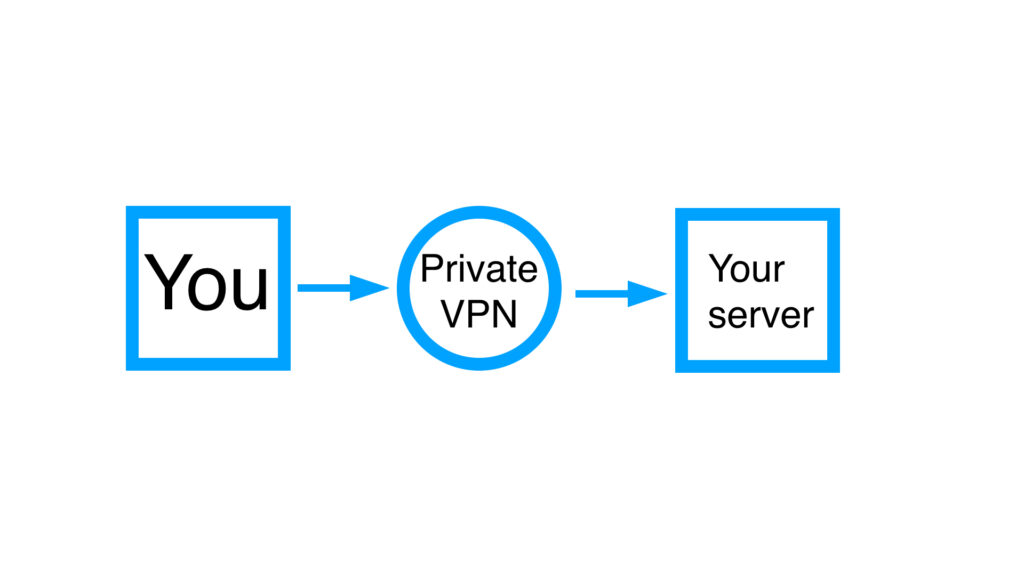
The best practice is to connect to your server using a private VPN. Set up a firewall to allow access from only trusted IPs, in this case, your VPN.
For more detailed information, you can also visit https://upcloud.com/resources/tutorials/resolve-problems-windows-remote-desktop.
Related Articles
Browse more articles in these categories.