How to reinstall OS?
This guide walks you through the steps to reinstall the operating system using VMmanager and DCImanager 6.
VMmanager 5
STEP 1: Go to VMmanager. (here is how to do it)
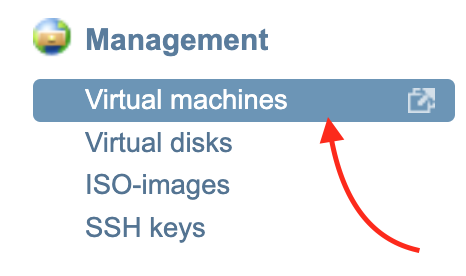
STEP 2: Click on “Virtual machines” in “Management”.
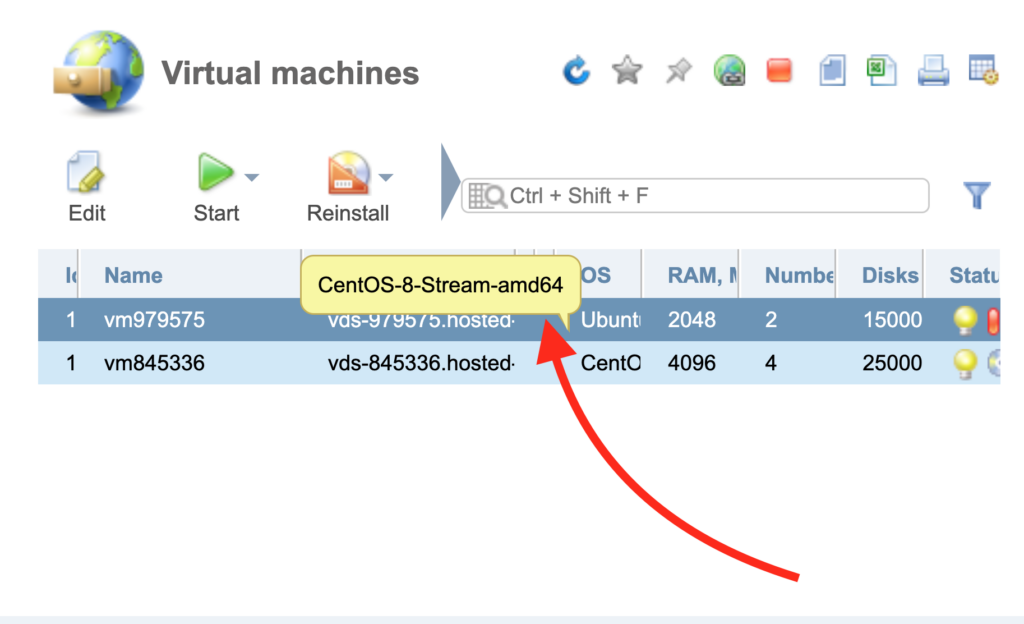
STEP 3: Select the service on which you will change or reinstall the OS.
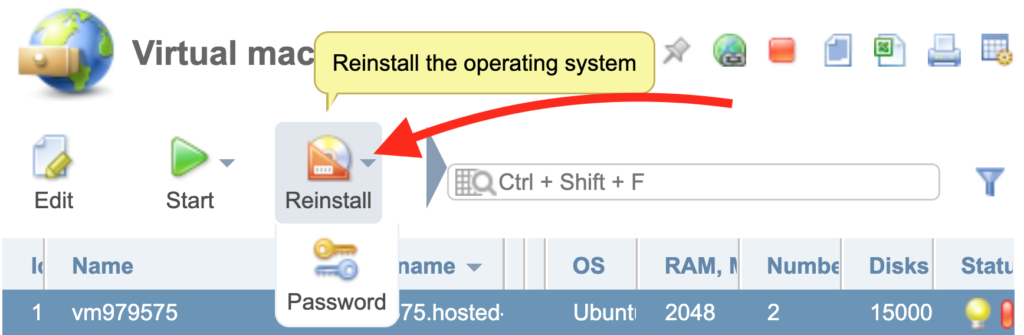
STEP 4: Click on the “Reinstall” button.
STEP 5: Click on “OS template”.
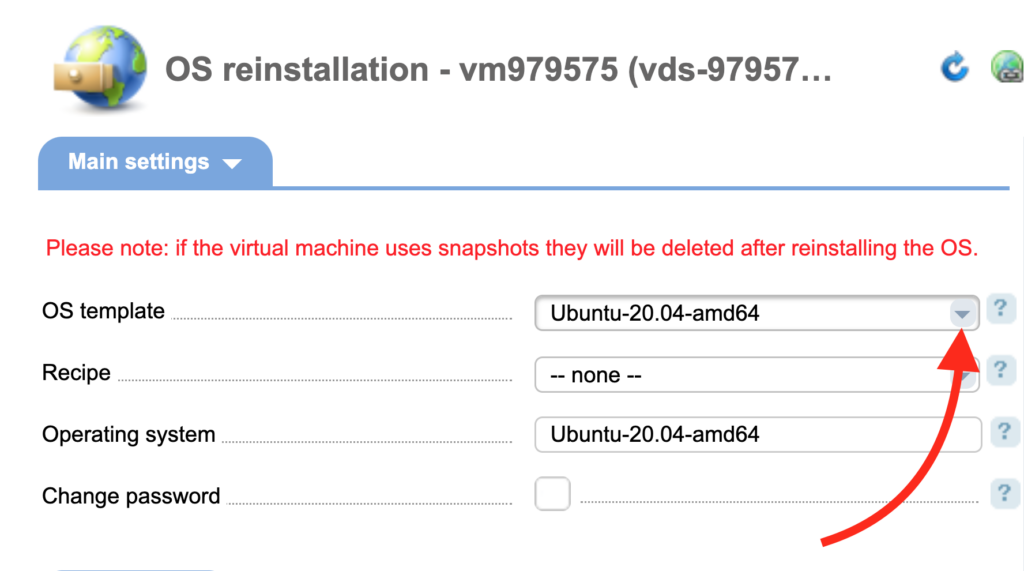
STEP 6: Select an OS.
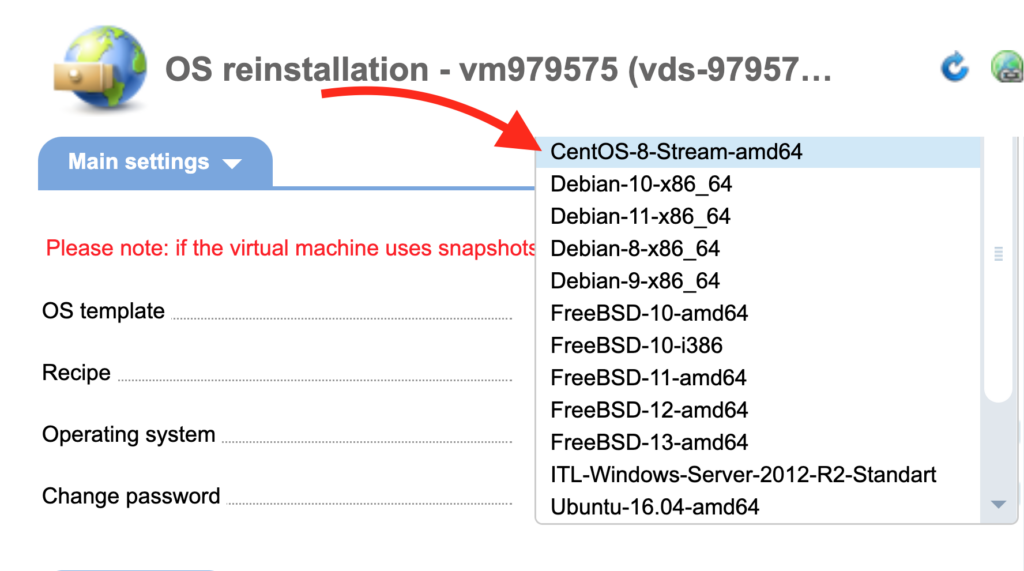
You can also change your password if needed. If you don’t, your password can be found in the service activation email.
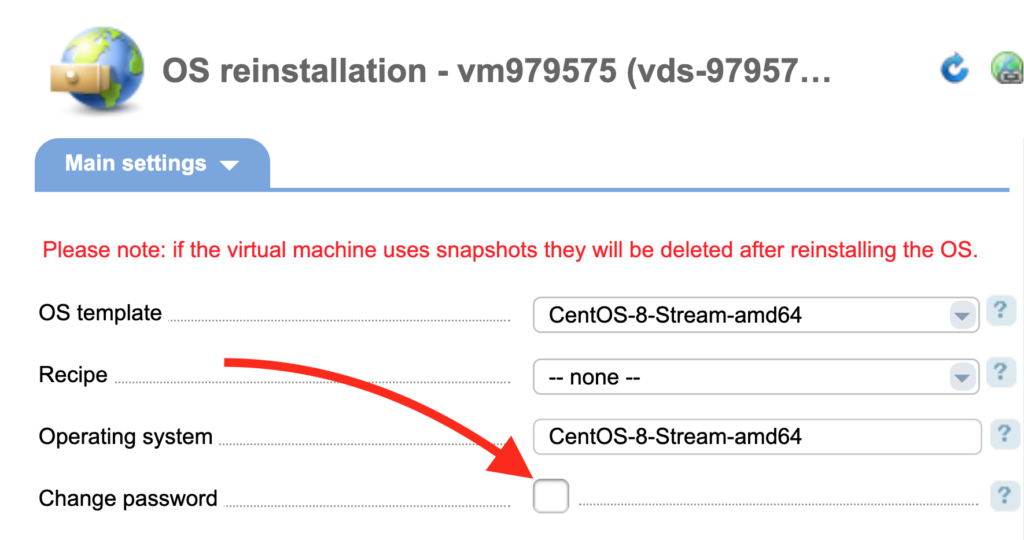
STEP 7: Click the “Ok” button if you are ready to apply all changes.

After a few minutes, the OS will be installed. The installation time may vary by operating system.
VMmanager 6
STEP 1: Go to VMmanager. (here is how to do it)
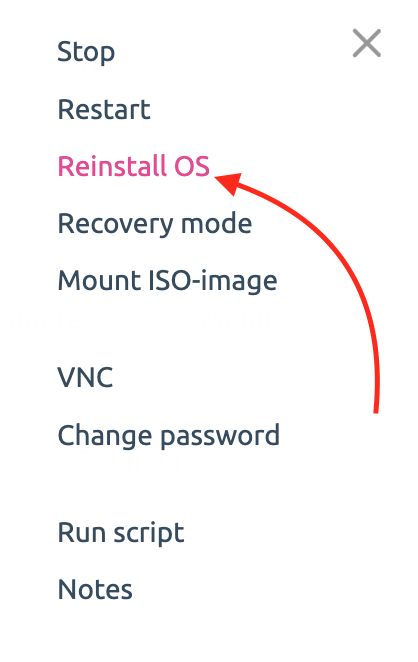
STEP 2: Click on the “Menu” button.

STEP 3: Click on the “Reinstall OS” button.
STEP 4: Select an OS that you want to install or reinstall.
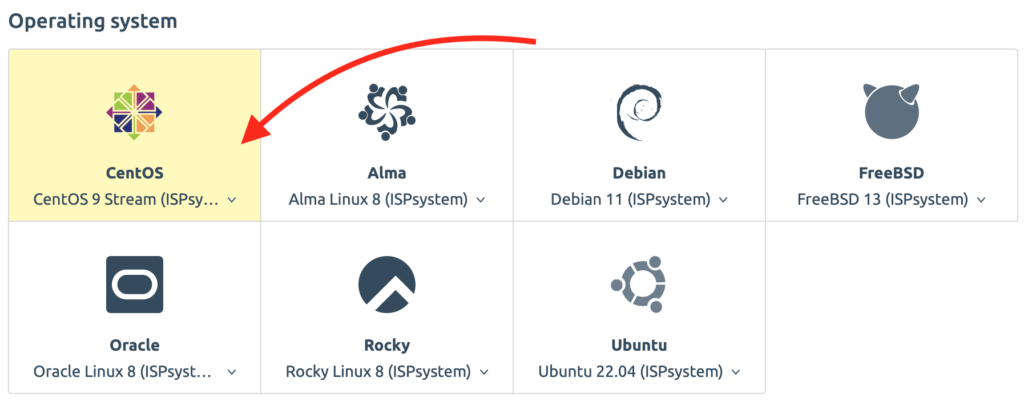
You can also change your password if needed.
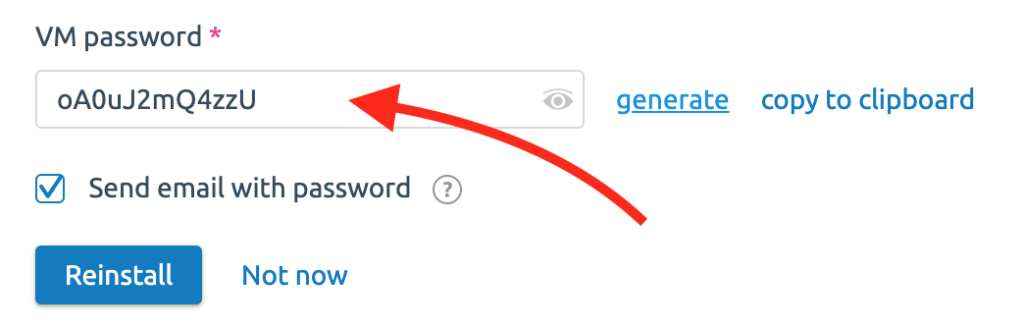
STEP 5: Click on the “Reinstall” button.

After a few minutes, the OS will be installed. The installation time may vary by operating system.
DCImanager 6
STEP 1: Go to DCIManager 6.
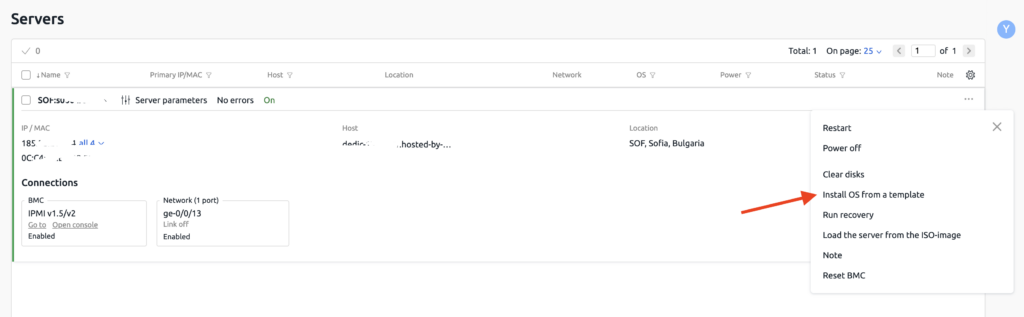
STEP 2: Select your server and click on ••• then “Install OS from a template”.
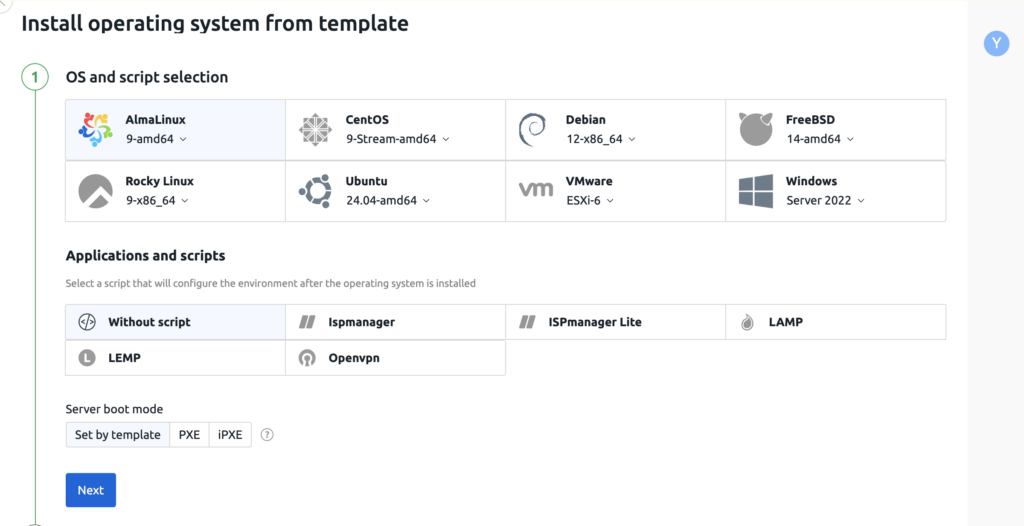
STEP 3: Select your OS and script if needed. In “Server boot mode”, we recommend using “Set by template”.
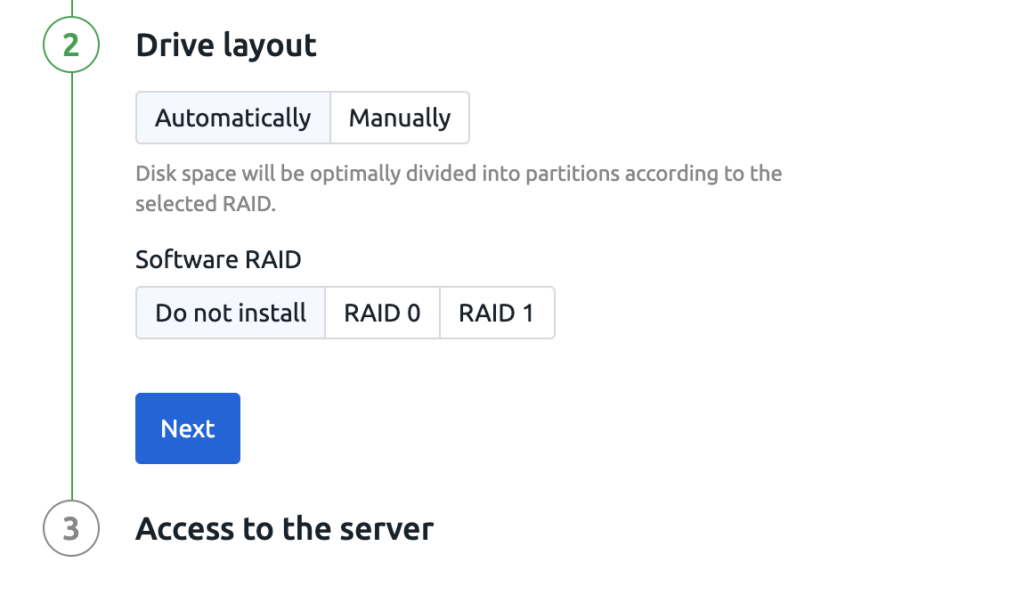
STEP 4: In Drive layout, select “Automatically” or “Manually” according to your needs, and you can also select Software RAID.
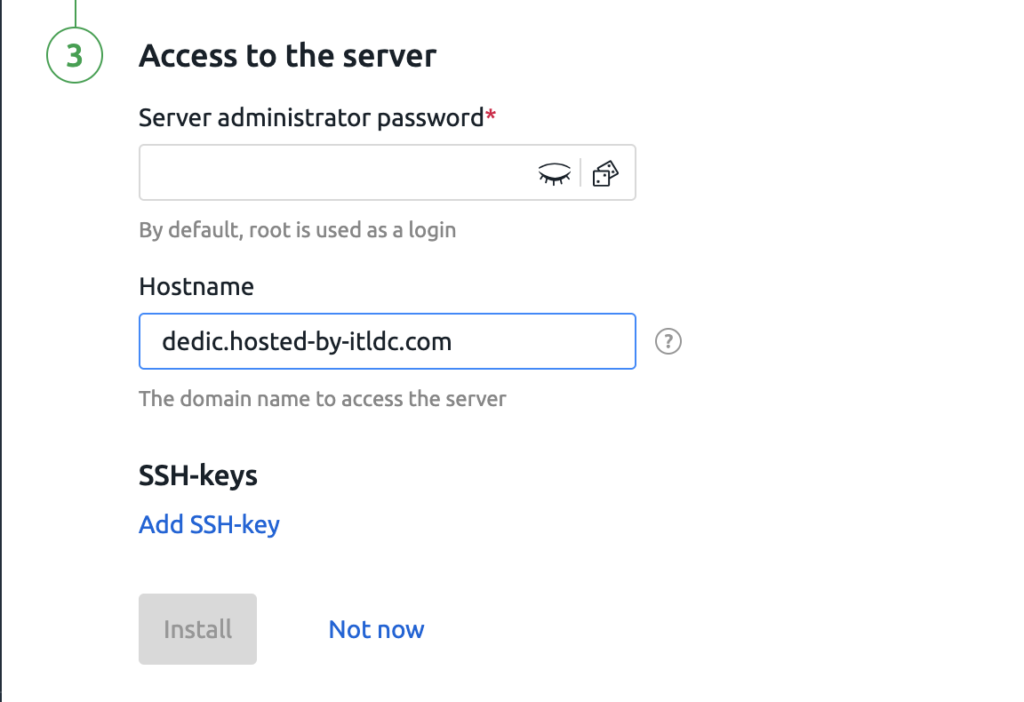
STEP 5: Set up the password, hostname, and SSH key if needed. You can generate a password, but please save it in your password manager for later access.
Related Articles
Browse more articles in these categories.