Knowledge Base
How to install Google Chrome in Windows server
This guide provides step-by-step instructions to install Google Chrome on a Windows Server by disabling security settings and downloading the browser.
Yaro
windows google chrome installation server browser
System preparation
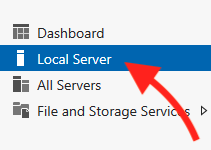
STEP 1: In Server Manager, go to Local Server settings.
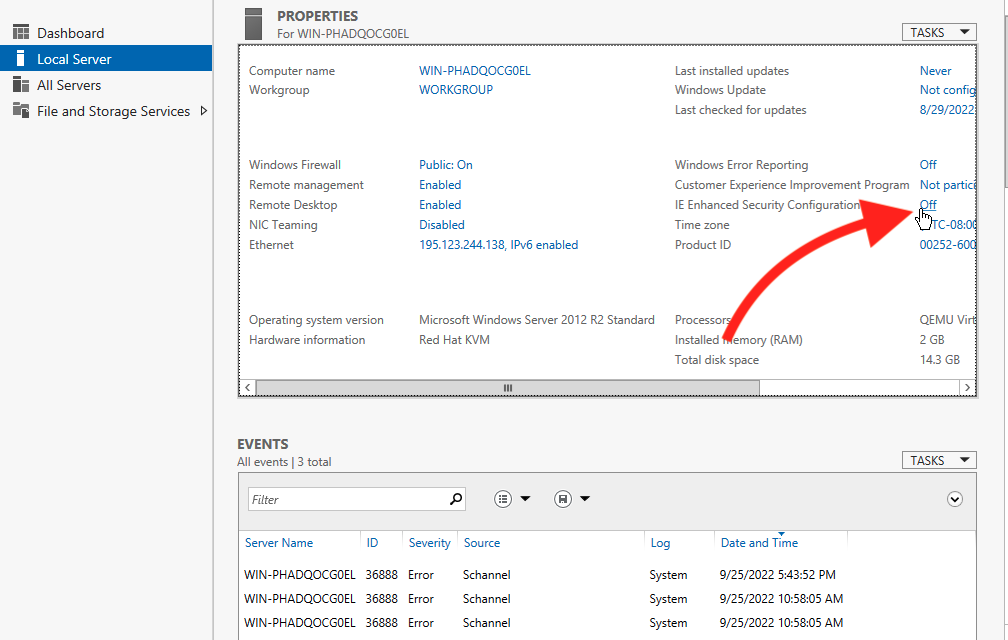
STEP 2: Click on the IE Enhanced Security Configuration.
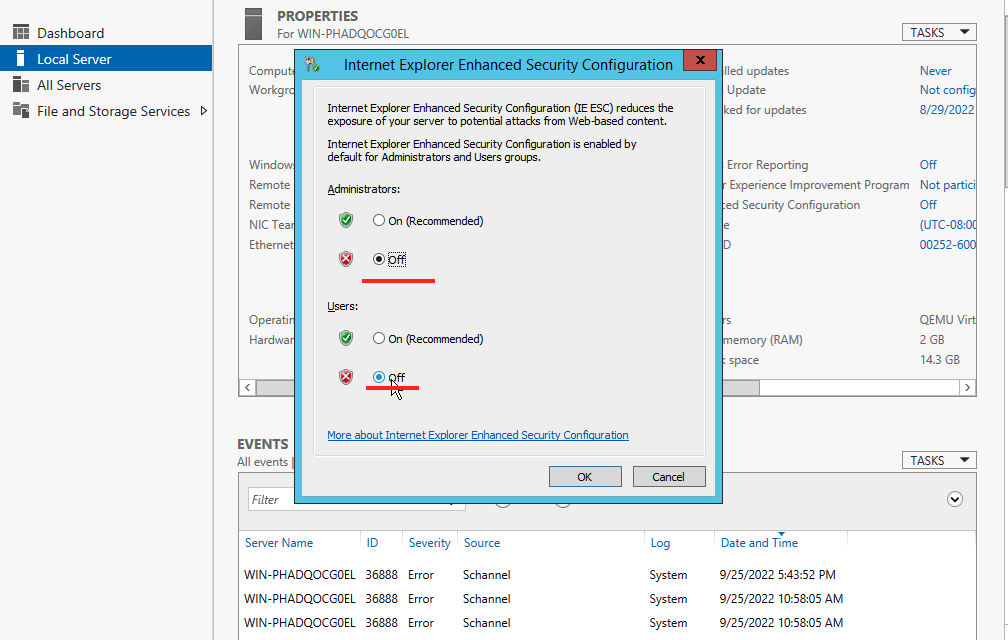
STEP 3: Click on the “Off” buttons to turn it off.
Installation process
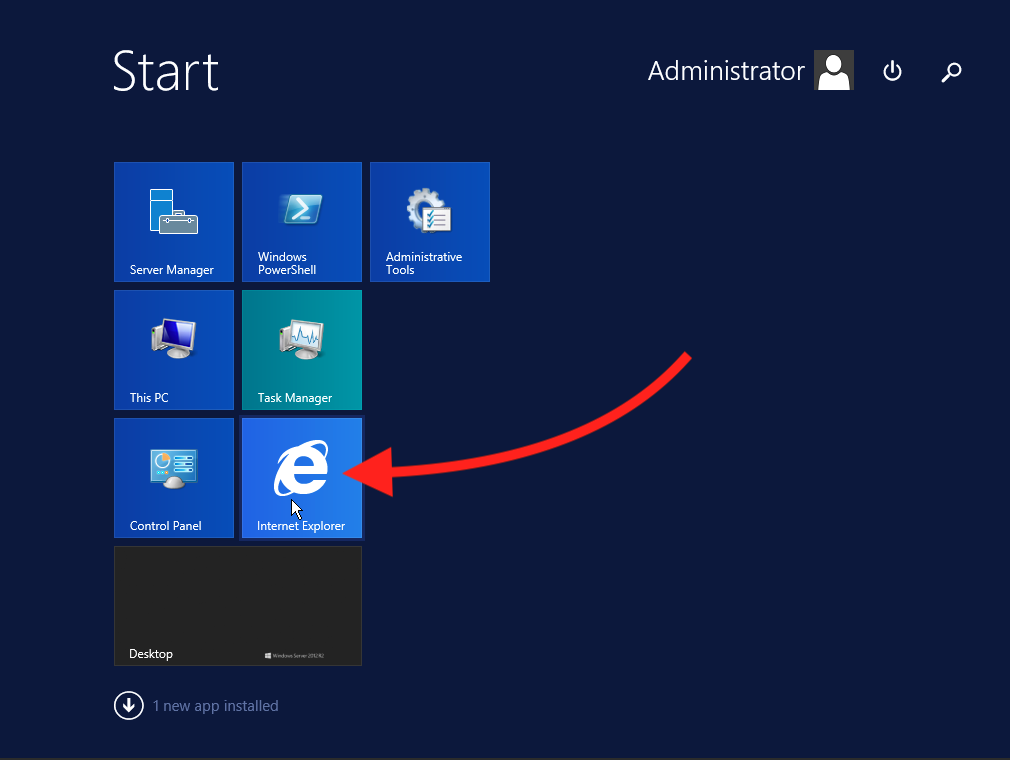
STEP 1: Click on the Start button.

STEP 2: Open Internet Explorer.
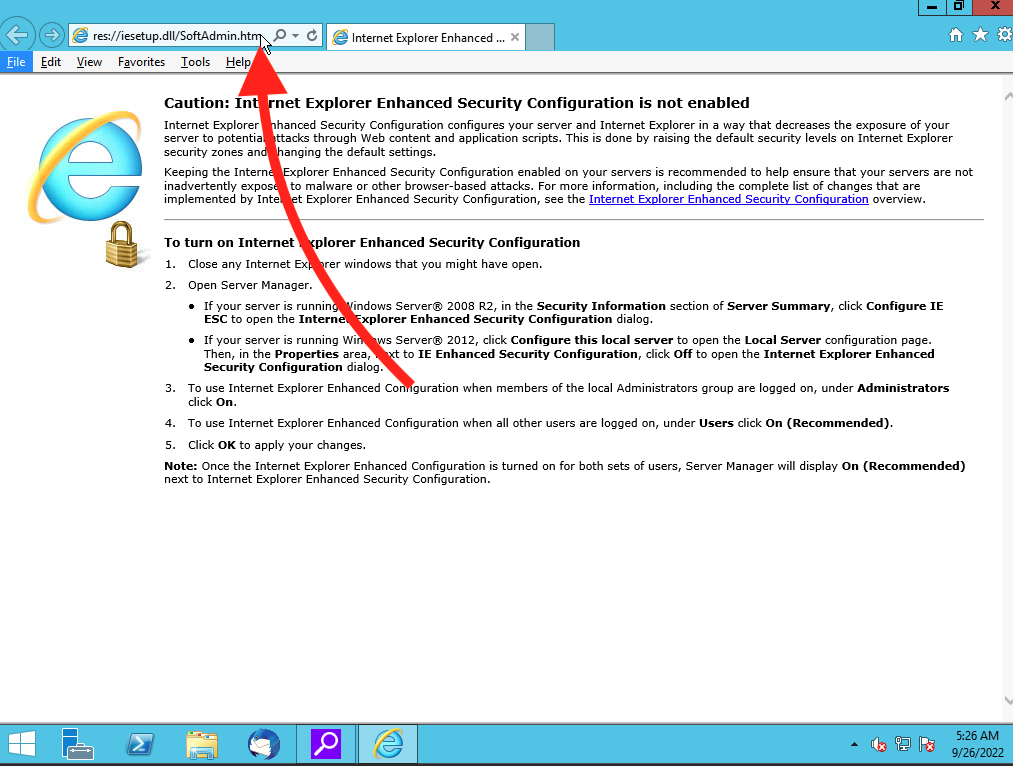
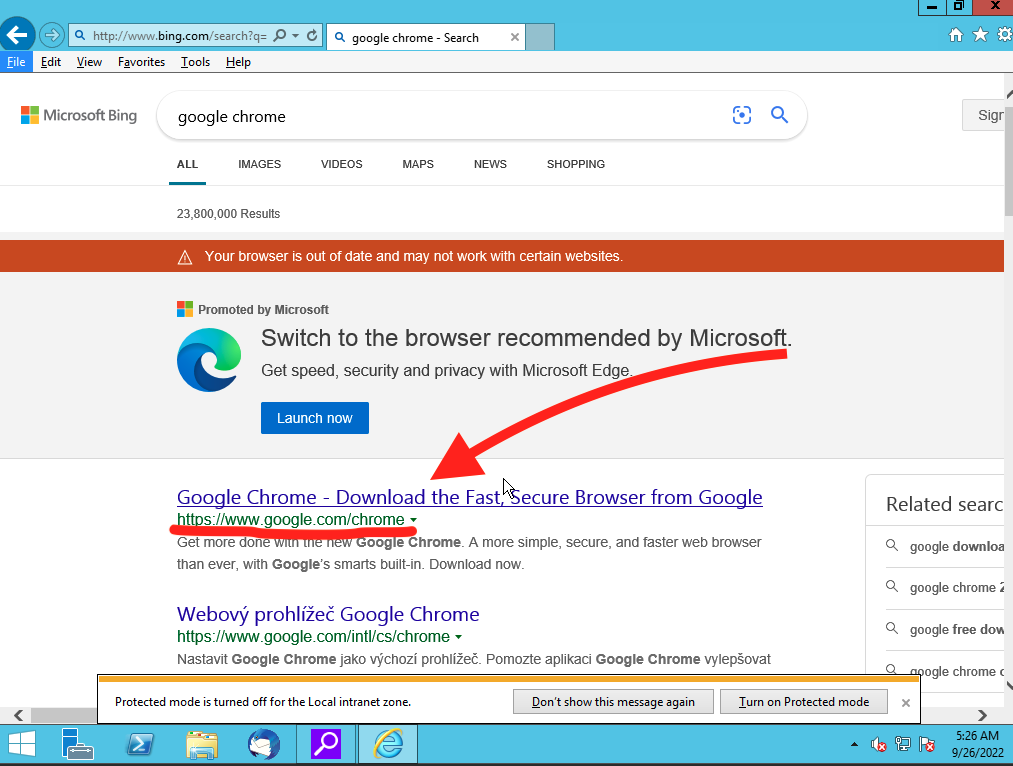
STEP 3: In the search bar, type “Google Chrome” and click the official installation link.
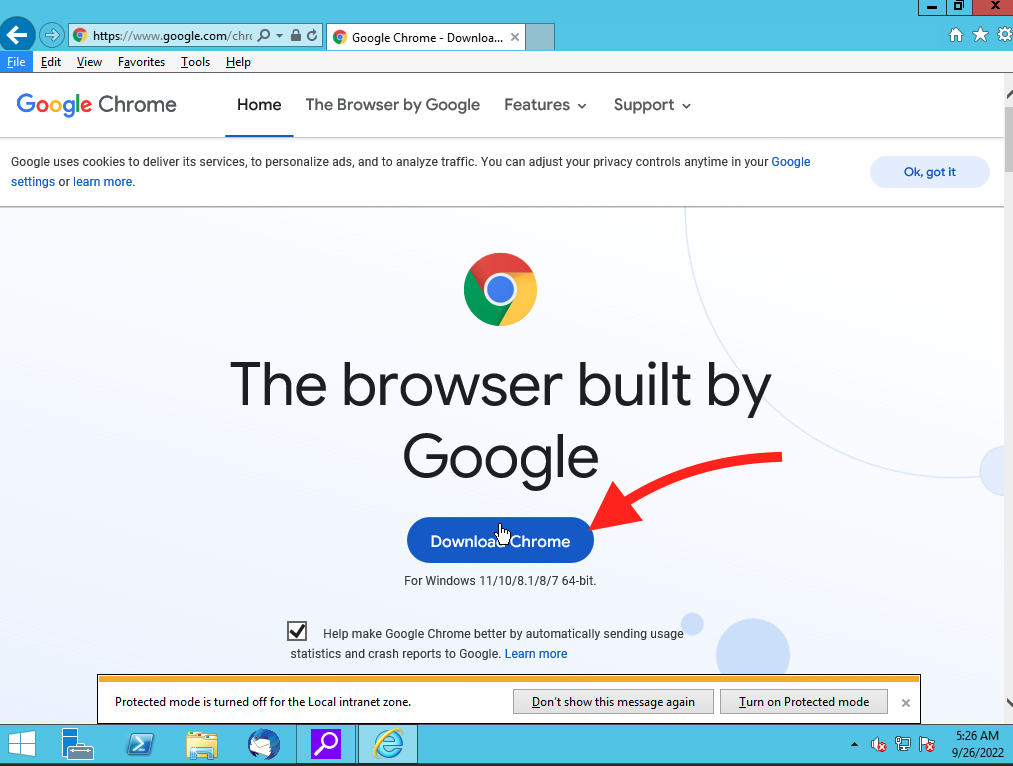
STEP 4: Click on the download button.
STEP 5: Allow the .exe file to run after the installation.

Related Articles
Browse more articles in these categories.