How to get into IPMI
Learn how to access IPMI for server management, including logging in and using KVM.
And just before we start, let’s quickly dive into what is IPMI and what is it used for.
Intelligent Platform Management Interface (IPMI) allows you to manage your server independently of the operating system. You can power it on/off, power cycle it, monitor system health, mount custom ISOs, and more. The key feature of IPMI is that it works even when the server is powered off, as it is an autonomous system.
Steps to Access IPMI
Step 1: Go to my.itldc.com.
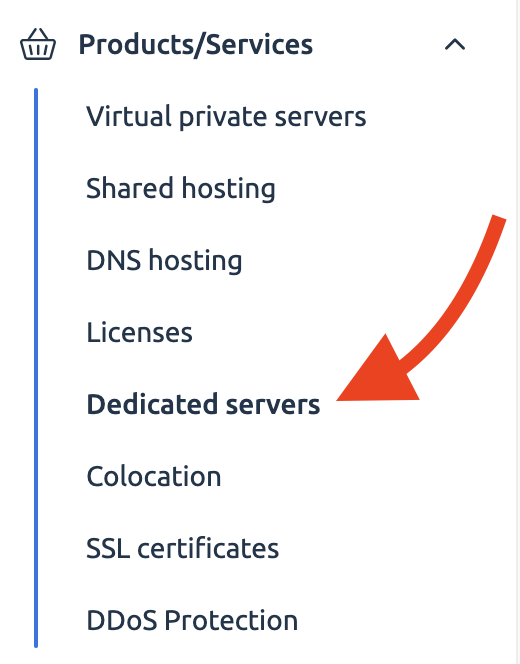
Step 2: Click on Dedicated Servers.
Step 3: Select the server and click on the “To panel” button.
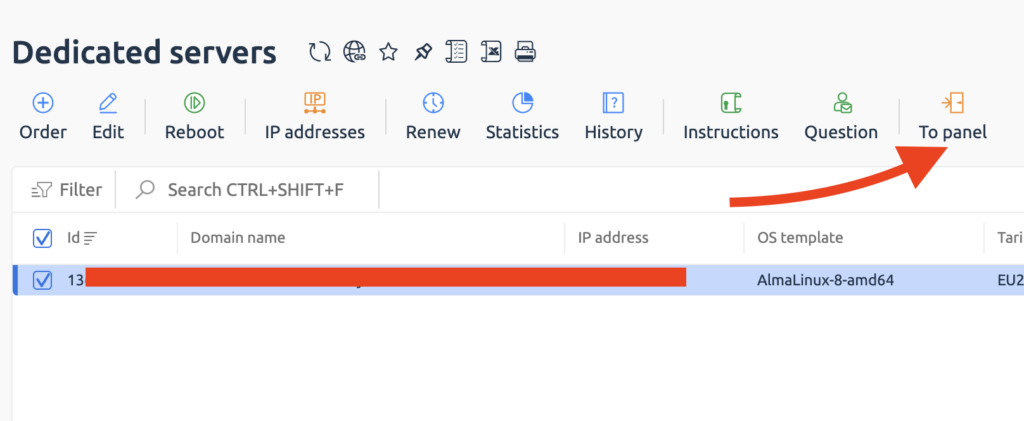
Congrats, you’ve logged into DCImanager!
Logging into IPMI
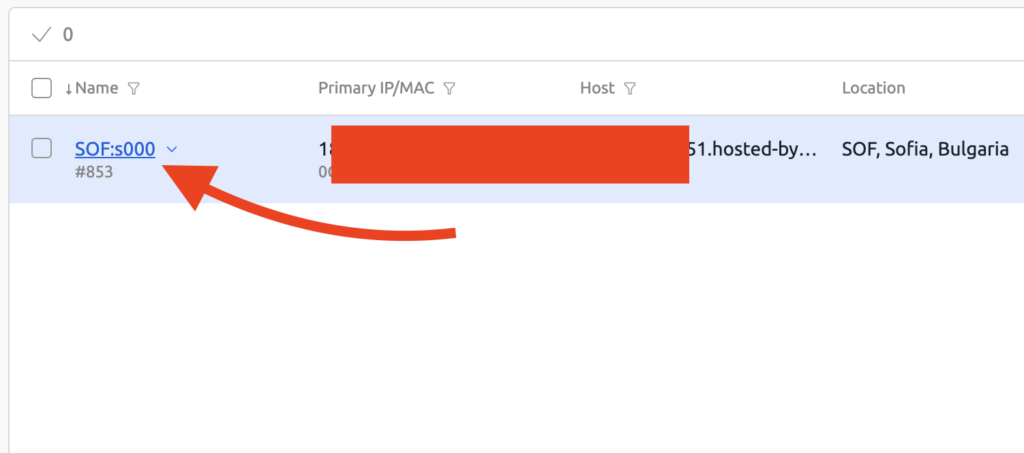
Step 4: Click on the server name.
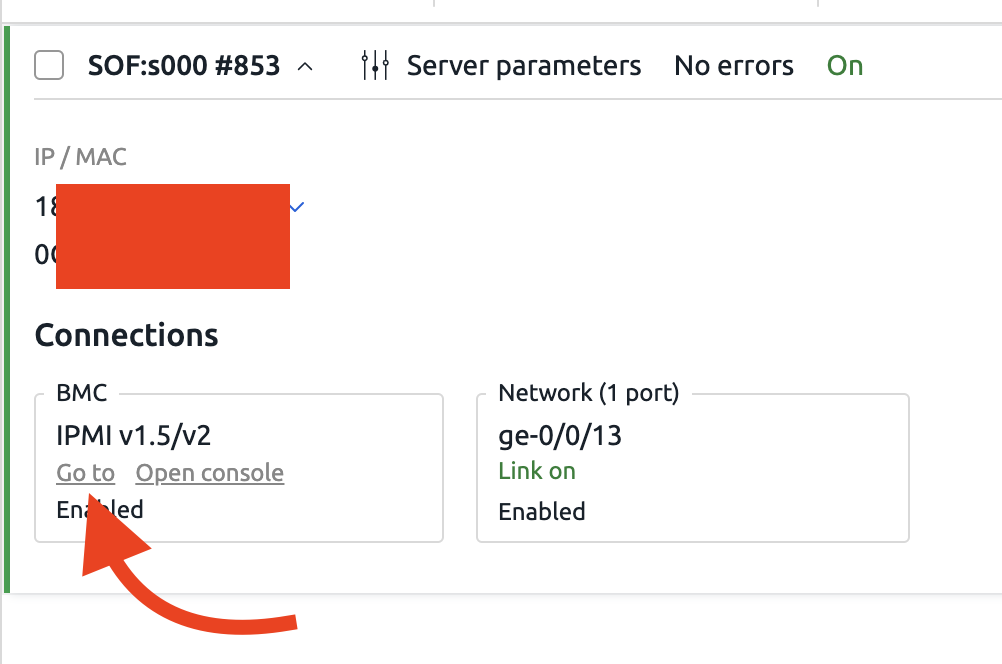
Step 5: Here, click on the “Go to” button.
Entering IPMI Credentials
Step 6: Select the username text field.
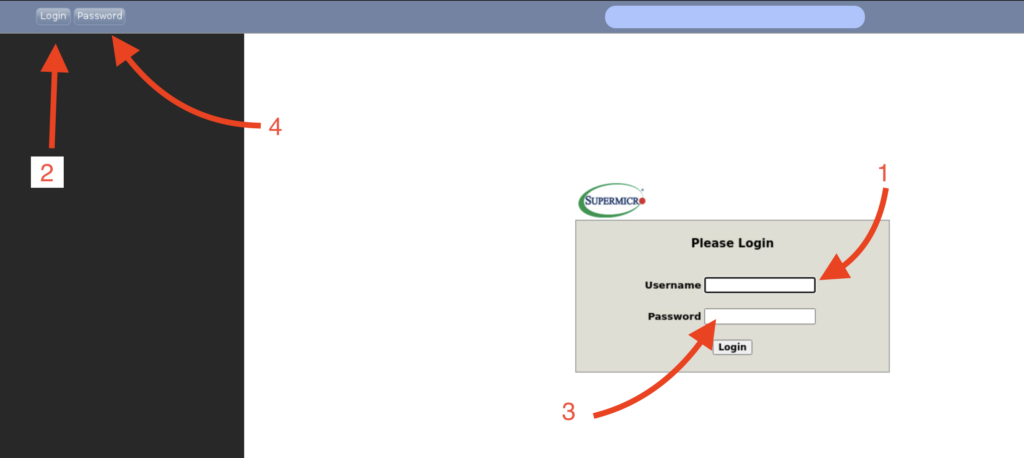
Step 7: Click on the “Login” button to automatically paste the username into the selected text field.
Step 8: Select the password text field.
Step 9: Click on the “Password” button to automatically paste the password into the selected text field.
How to Access KVM?
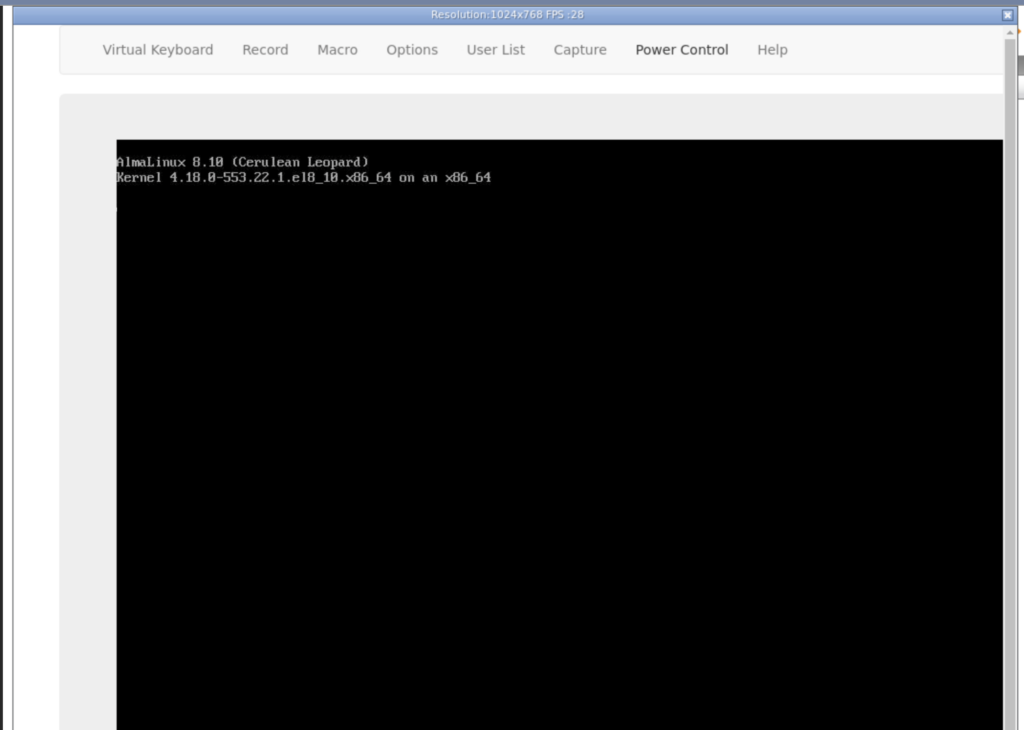
KVM stands for Keyboard, Video, Mouse. You can access it following these steps.
Option 1
In DCImanager, click Open console.
After the console has been launched, there will be a Java popup menu. Allow the installation.
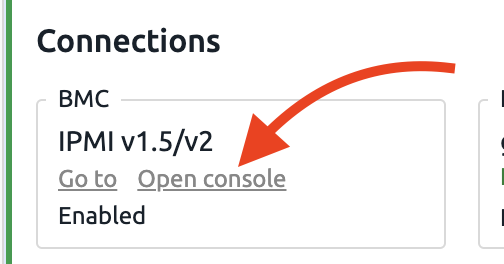
That’s it!
Option 2 (iKVM/HTML5)
Step 1: In Remote Control, click iKVM/HTML5.
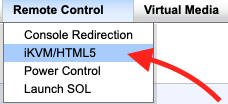
Step 2: Click on iKVM/HTML5.

Related Articles
Browse more articles in these categories.