How to change a password inside an OS
This guide outlines the steps to change a password in both Linux and Windows environments.
Linux
STEP 1: Connect via ssh or through the VNC Console.
NOTE: macOS and Linux have a built-in SSH client. Windows doesn’t have a built-in one, but you can easily connect using the VNC console or install an SSH client.
STEP 2: Use the passwd command.
STEP 3: Enter a new password. Note that the password won’t be displayed, so make sure to enter it carefully.
Windows Server
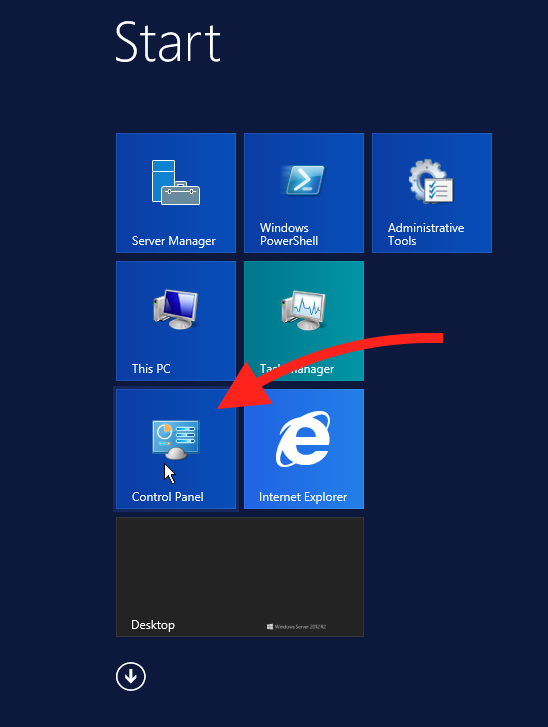
STEP 1: Enter the START menu.

STEP 2: Click Control Panel.
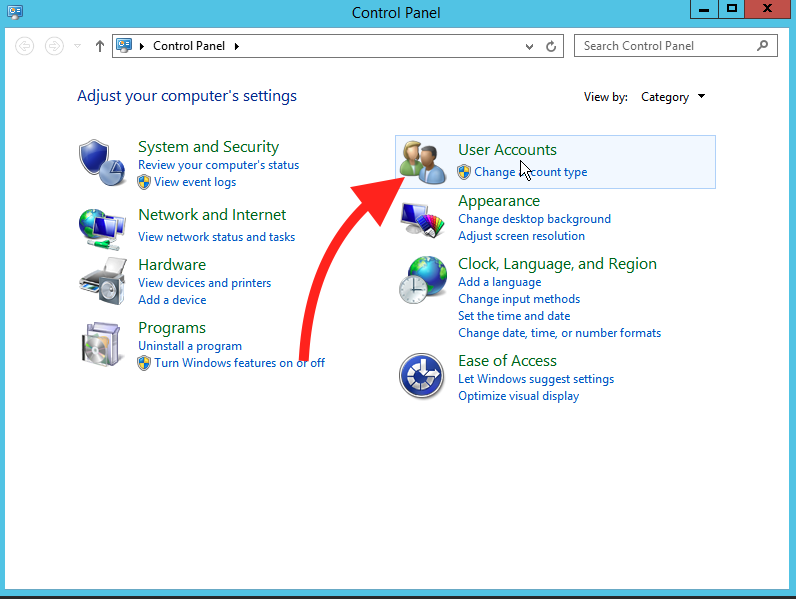
STEP 3: Click the User Accounts button.
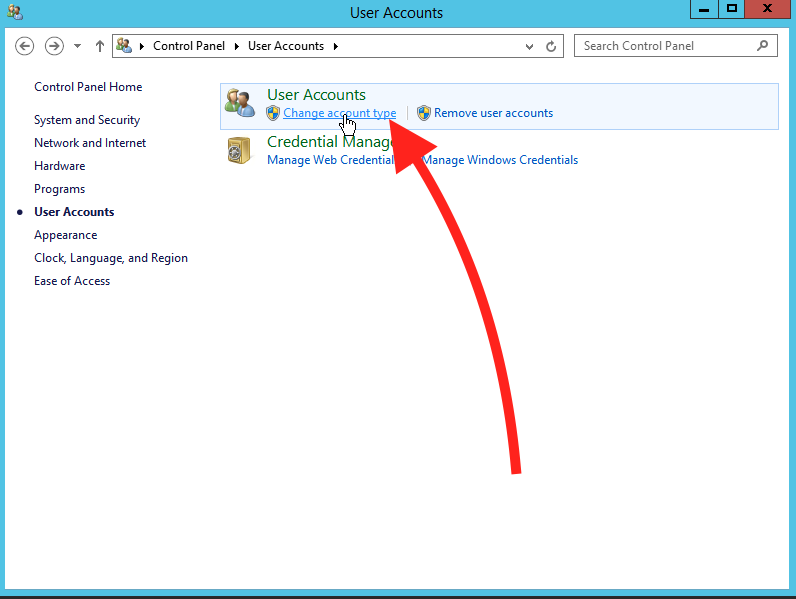
STEP 4: Click the Change account type button.
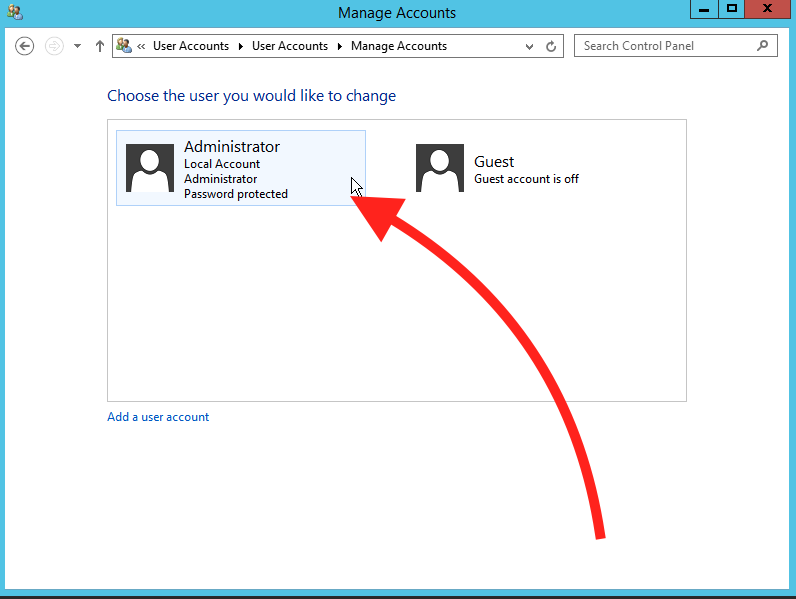
STEP 5: Choose the account for which you want to change the password.
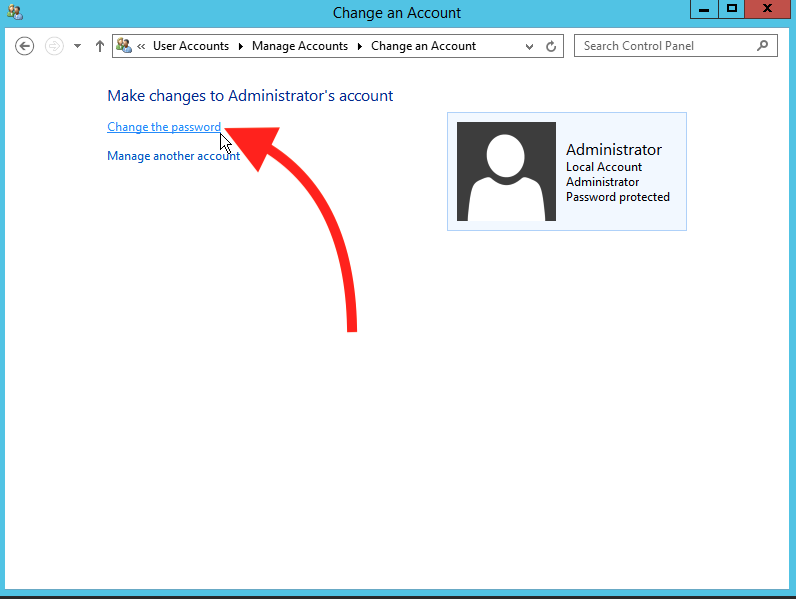
STEP 6: Click the Change the password button.
STEP 7: Enter the old password, then enter the new password.
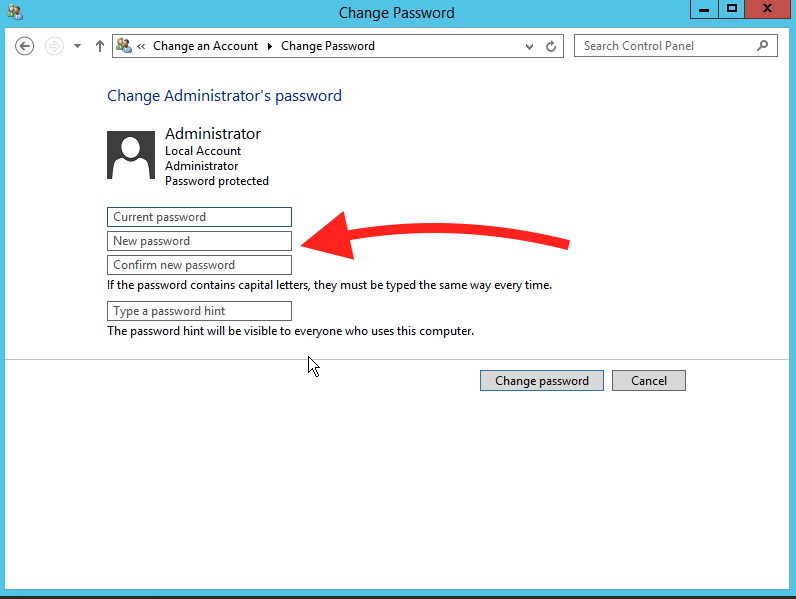
STEP 8: Click the Change password button to save your changes.

Related Articles
Browse more articles in these categories.