WireGuard — Set Up Your Fast VPN in a Minute!
Set up your own WireGuard server quickly and easily with our step-by-step guide. Enjoy fast VPN connections with minimal configuration!
WireGuard — Set Up Your Fast VPN in a Minute!
Many have heard of WireGuard - the new VPN protocol that provides significantly higher speed and has a simple client software setup. Some people are intimidated by the complexity of installation - especially the parts of the instructions that talk about kernel modules. We’ll explain how to quickly and easily set up your own WireGuard server.
First — general impressions of WireGuard. Indeed, this product delivers impressive performance thanks to the use of the UDP transport protocol and numerous optimizations. Unlike OpenVPN and similar products, the setup principle is slightly different - a separate key must be generated for each individual device. In other words, if you need to connect from a smartphone, home computer, and laptop, with WireGuard you need to generate three keys; using one key won’t work. It is worth noting that key generation is a simple task and shouldn’t be feared.
So, let’s get started. We will need the simplest VDS — an SSD VDS 1G will suffice. Choose a data center, and we will use Debian 10 as the operating system. The other parameters can be left at default.
Installing the operating system on the SSD VDS takes a few minutes, after which you can proceed to install and run your WireGuard. Connect to the SSD VDS using any SSH client (like Putty or others) and execute the following commands:
apt-get install -y curl
curl https://raw.githubusercontent.com/complexorganizations/wireguard-manager/master/wireguard-server.sh --create-dirs -o /etc/wireguard/wireguard-server.sh
chmod +x /etc/wireguard/wireguard-server.sh
HEADLESS_INSTALL=y /etc/wireguard/wireguard-server.sh
Let’s break this down. We install curl (which is usually not included in the default OS packages), download the wireguard-server.sh script, and execute it. Yes, we’ll be using the wonderful utility wireguard-manager by Prajwal Koirala, which will install all necessary components, start WireGuard, and prepare the first key pair!
Now that we’ve executed the commands, we received a QR code. You can download the WireGuard client for your smartphone or computer (iOS (iPhone/iPad), Android, other platforms), run the WireGuard app, and add the connection. Yes, that’s exactly what the QR code is for — the app scans it to add the connection without the need to enter any complex technical data or passwords!
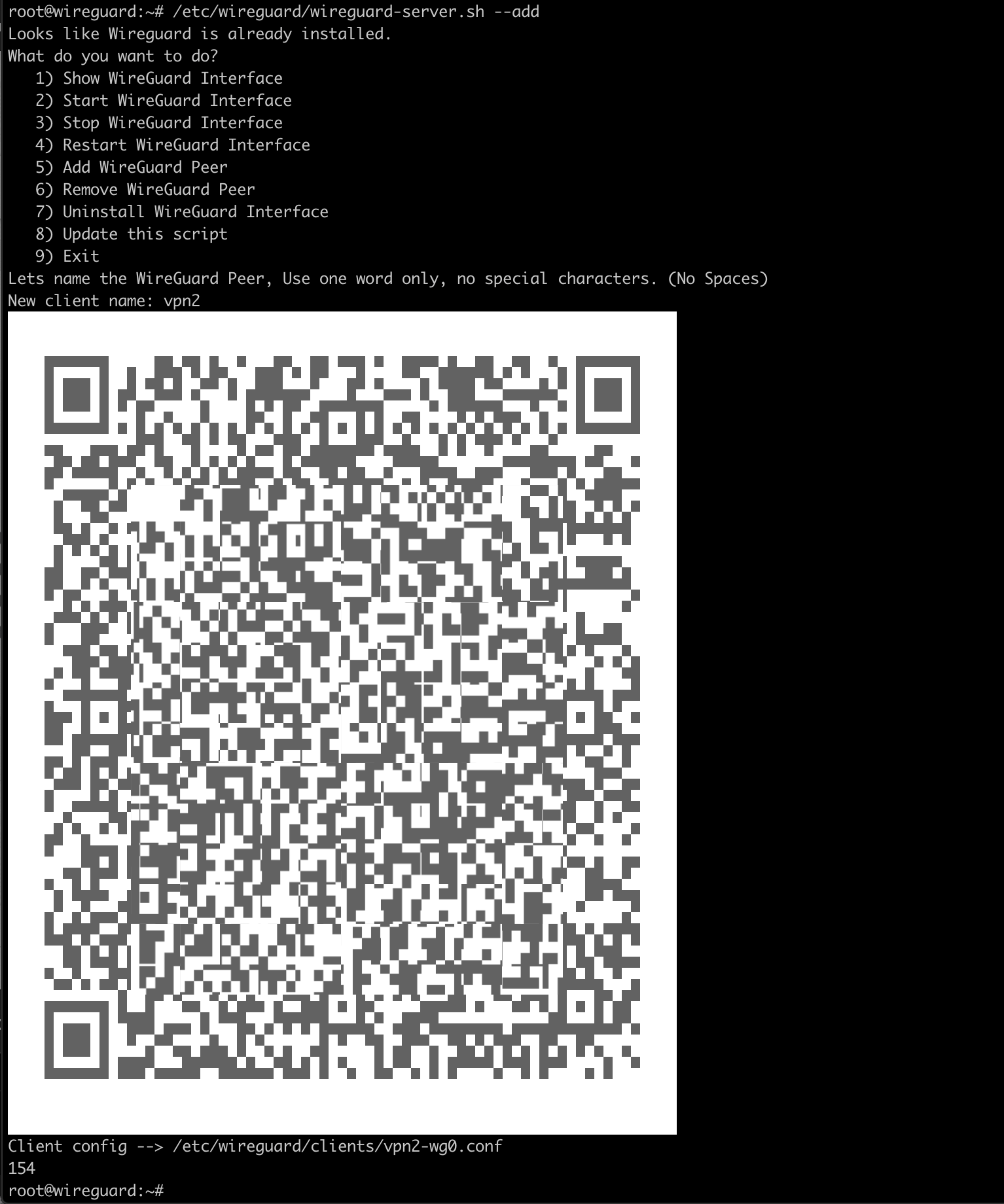
To add an additional connection, run:
/etc/wireguard/wireguard-server.sh --add
Specify the connection name (for example, vpn2) and instantly receive an additional QR code. Quick and easy:
Additionally, this script works on all modern Linux systems. On CentOS 7/8, it may require disabling firewalld, whereas on Debian or Ubuntu no further actions are required, making Debian 10/Ubuntu 18 preferable.
WireGuard truly impresses. Highly recommended!
Need Help?
Our support team is available 24/7 to assist you with any questions or issues.
Contact Support