Ubuntu VDS with Remote Desktop Access
Learn how to set up an Ubuntu VDS with remote desktop access using VNC, creating a convenient remote working environment.
Setting Up Ubuntu VDS with Remote Desktop Access
Typically, SSD VDS are commonly used for hosting web resources or as auxiliary servers — mail, DNS, and so on. However, the capabilities of VDS are not limited to this; after all, it’s a full-fledged (though virtual) server where almost any applications can be utilized.
One of the use cases for VDS is creating a complete remote working environment with a browser, email client, instant messenger, and office applications. Let’s set up such a VDS with a desktop based on Ubuntu with VNC connection capability.
Step 1: Order a VDS
The first step is to order a VDS. It is recommended to choose a plan with 1024MB of memory or more, so modern graphical applications can function properly and quickly. For the operating system, select Ubuntu 12.xx — one of the most popular systems for use as a workstation with an easy-to-use interface. The installation takes some time, and upon completion, an email will be sent with the access parameters.
Step 2: Install Necessary Software
Connect to your SSD VDS using any SSH client, perform the installation, and launch the VNC server configurator:
apt-get install ubuntu-desktop gdm tightvncserver
vncserver :1 -geometry 1024x768
The configurator will ask for a password for VNC — specify the password that you will use for the connection. Then create a special script that will ensure the VNC server starts when the virtual machine starts. Save the following script in a file named /etc/init.d/vncserver:
#!/bin/sh -e
### BEGIN INIT INFO
# Provides:          vncserver
# Required-Start:    networking
# Default-Start:     3 4 5
# Default-Stop:      0 6
### END INIT INFO
PATH="$PATH:/usr/X11R6/bin/"

# The Username:Group that will run VNC
export USER="root"
#${RUNAS}

# The display that VNC will use
DISPLAY="1"

# Color depth (between 8 and 32)
DEPTH="16"

# The Desktop geometry to use.
#GEOMETRY="<WIDTH>x<HEIGHT>"
#GEOMETRY="800x600"
#GEOMETRY="1024x768"
GEOMETRY="1280x1024"

# The name that the VNC Desktop will have.
NAME="my-vnc-server"

OPTIONS="-name ${NAME} -depth ${DEPTH} -geometry ${GEOMETRY} :${DISPLAY}"

. /lib/lsb/init-functions

case "$1" in
start)
log_action_begin_msg "Starting vncserver for user '${USER}' on localhost:${DISPLAY}"
su ${USER} -c "/usr/bin/vncserver ${OPTIONS}"
;;

stop)
log_action_begin_msg "Stopping vncserver for user '${USER}' on localhost:${DISPLAY}"
su ${USER} -c "/usr/bin/vncserver -kill :${DISPLAY}"
;;

restart)
$0 stop
$0 start
;;
esac

exit 0
Step 3: Set Up Automatic Start
Prepare everything necessary for the automatic start of the VNC server:
chmod +x /etc/init.d/vncserver
update-rc.d vncserver defaults 99
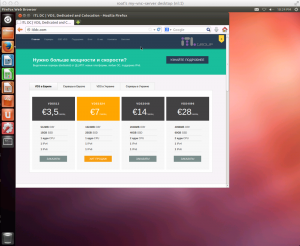
After that, reboot the SSD VDS with the command reboot. In a couple of minutes, you can connect to the desktop using any VNC client. For Windows and Linux, you can use TightVNC, while MacOS users can use the built-in client or install Chicken of the VNC. If the VNC client prompts you to specify a port number during connection setup, specify 5901. Connect, enter the password, launch the existing Firefox browser on the system, and start working:
Need Help?
Our support team is available 24/7 to assist you with any questions or issues.
Contact Support