VPN on SSD VDS — Now Even Easier!
Discover how easy it is to set up a VPN server on SSD VDS with our ready-made templates for seamless connection across devices.
VPN on SSD VDS — Now Even Easier!
Earlier, we wrote about how to quickly and easily set up a VPN server on your VDS using OpenVPN Access Server. Now it has become even more accessible — in all our locations when ordering SSD VDS, you can choose a ready-made template and literally within a few minutes receive a prepared, configured VPN server!
We remind you that OpenVPN Access Server is a ready-made solution that allows connections from any operating system and modern mobile devices. In the vast majority of cases, no additional configuration is required — simply install the OpenVPN client on your computer, tablet, or smartphone, download the prepared profile, and connect to the VPN server. OpenVPN Access Server supports up to 2 simultaneous connections without the need to purchase additional licenses — this is more than enough for personal use.
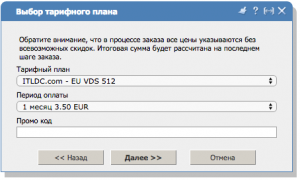
Getting your own VPN server is very simple. You need to open an account in our self-service system my.itldc.com. Then proceed to order a VDS server in any desired location. A minimum VDS512 tariff is sufficient for the VPN server to function:
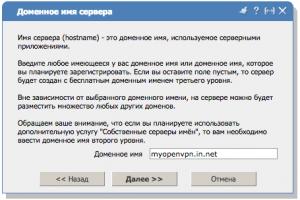
The next step will be to set the server name. You can choose any name — it can be changed at any time if necessary:
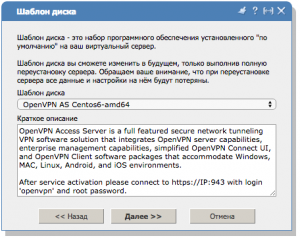
Next, we select from the list of operating system templates for VDS a specially prepared solution — OpenVPN AS based on Centos 6.x:
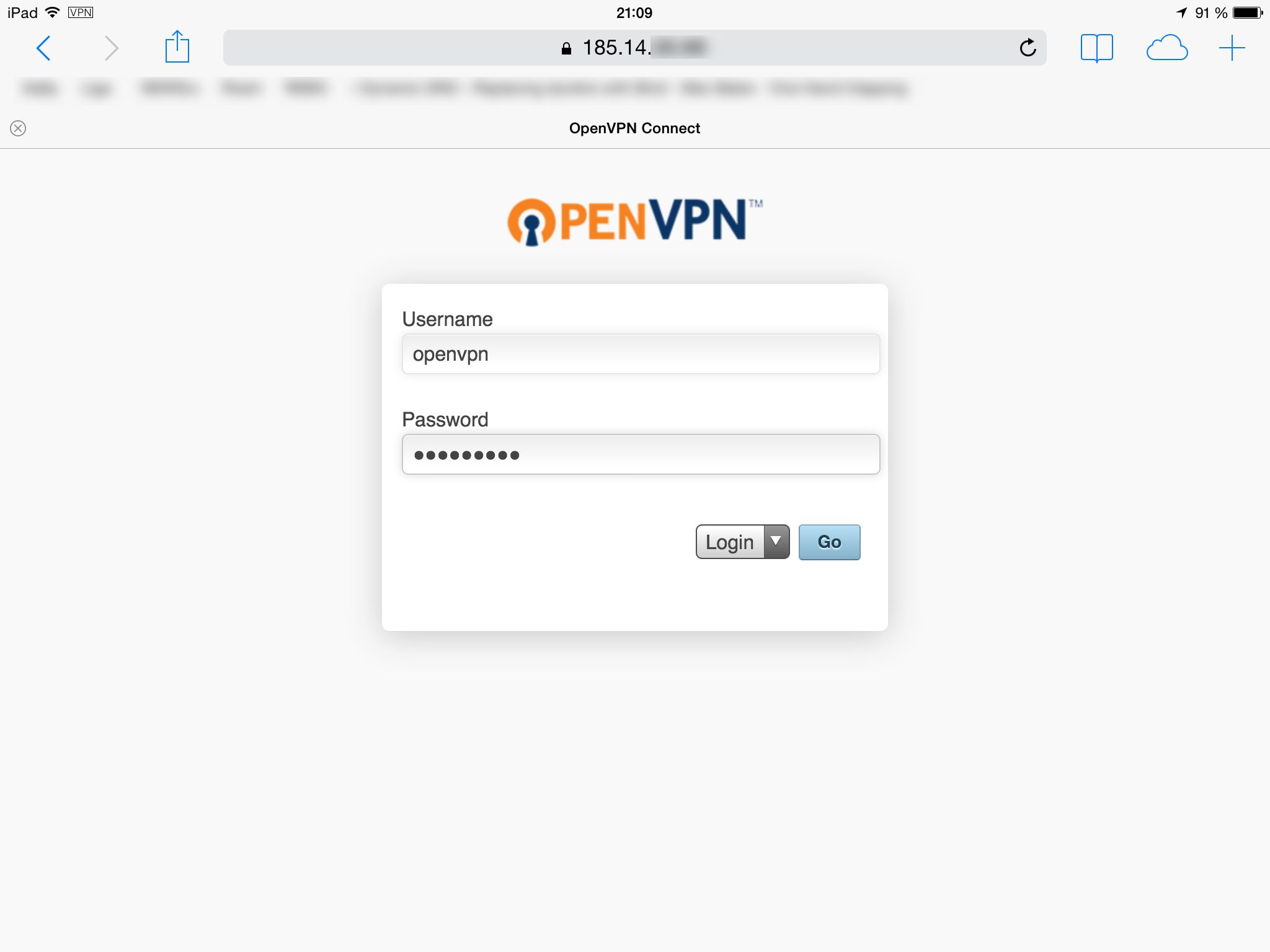
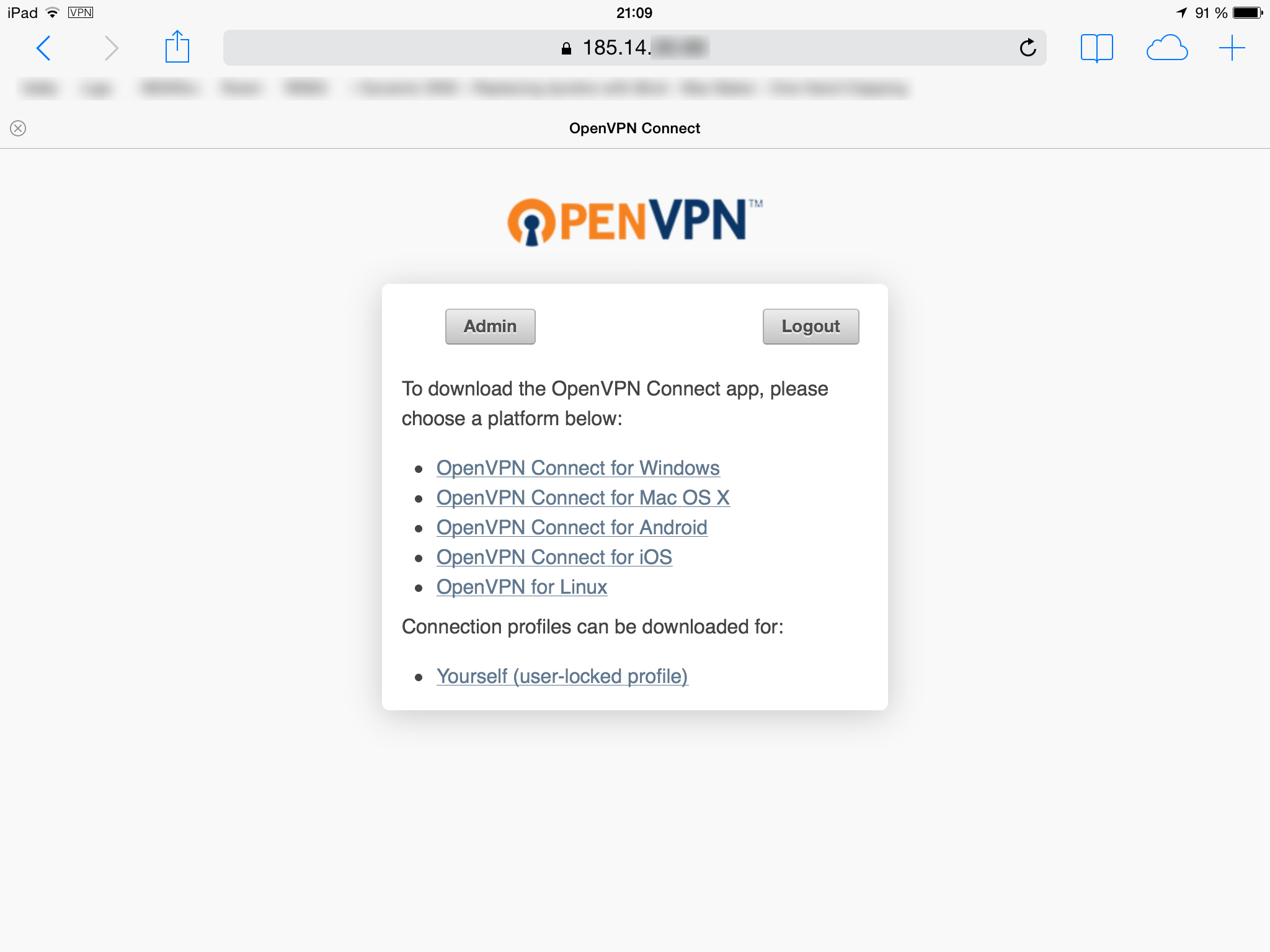
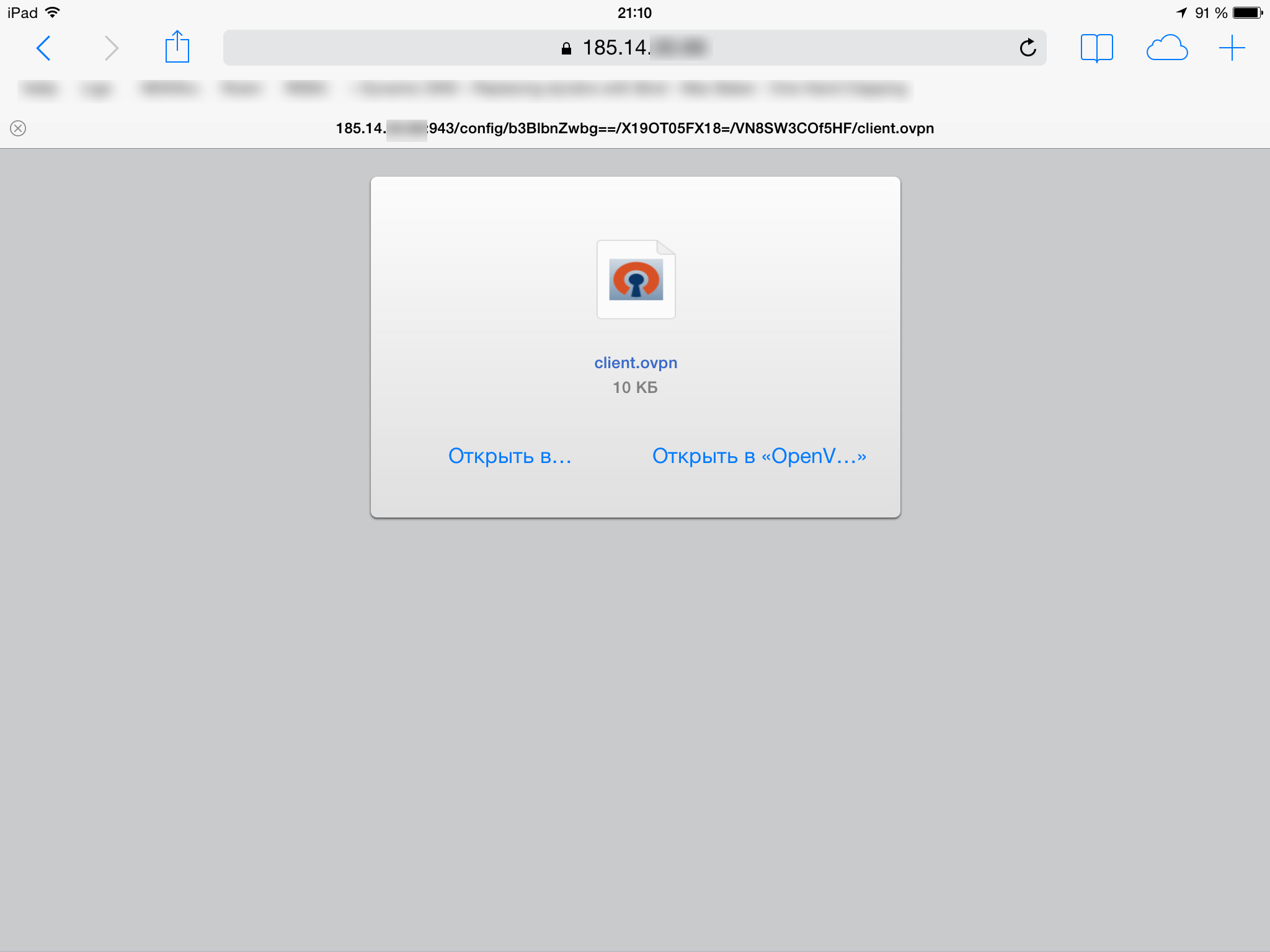
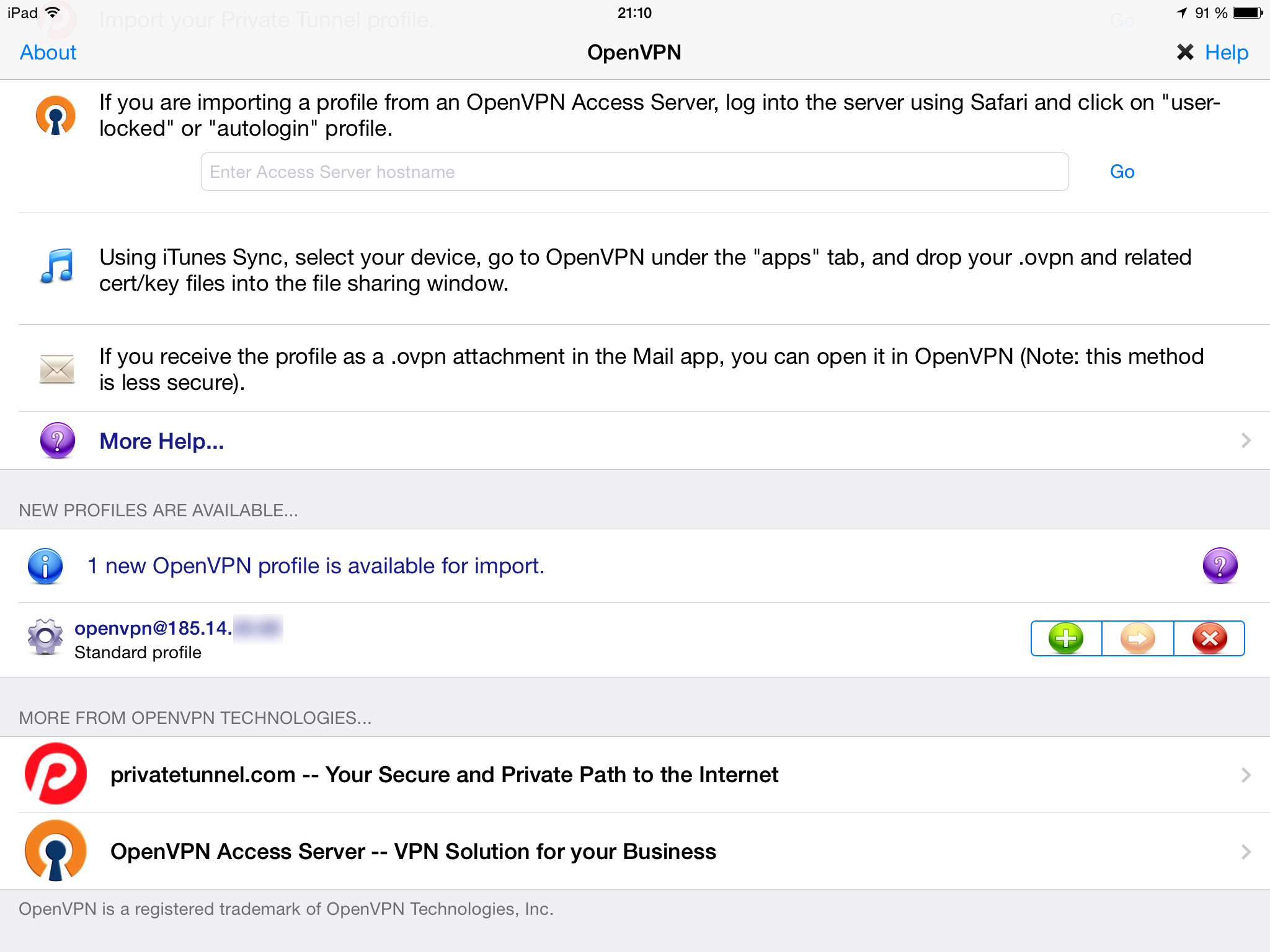
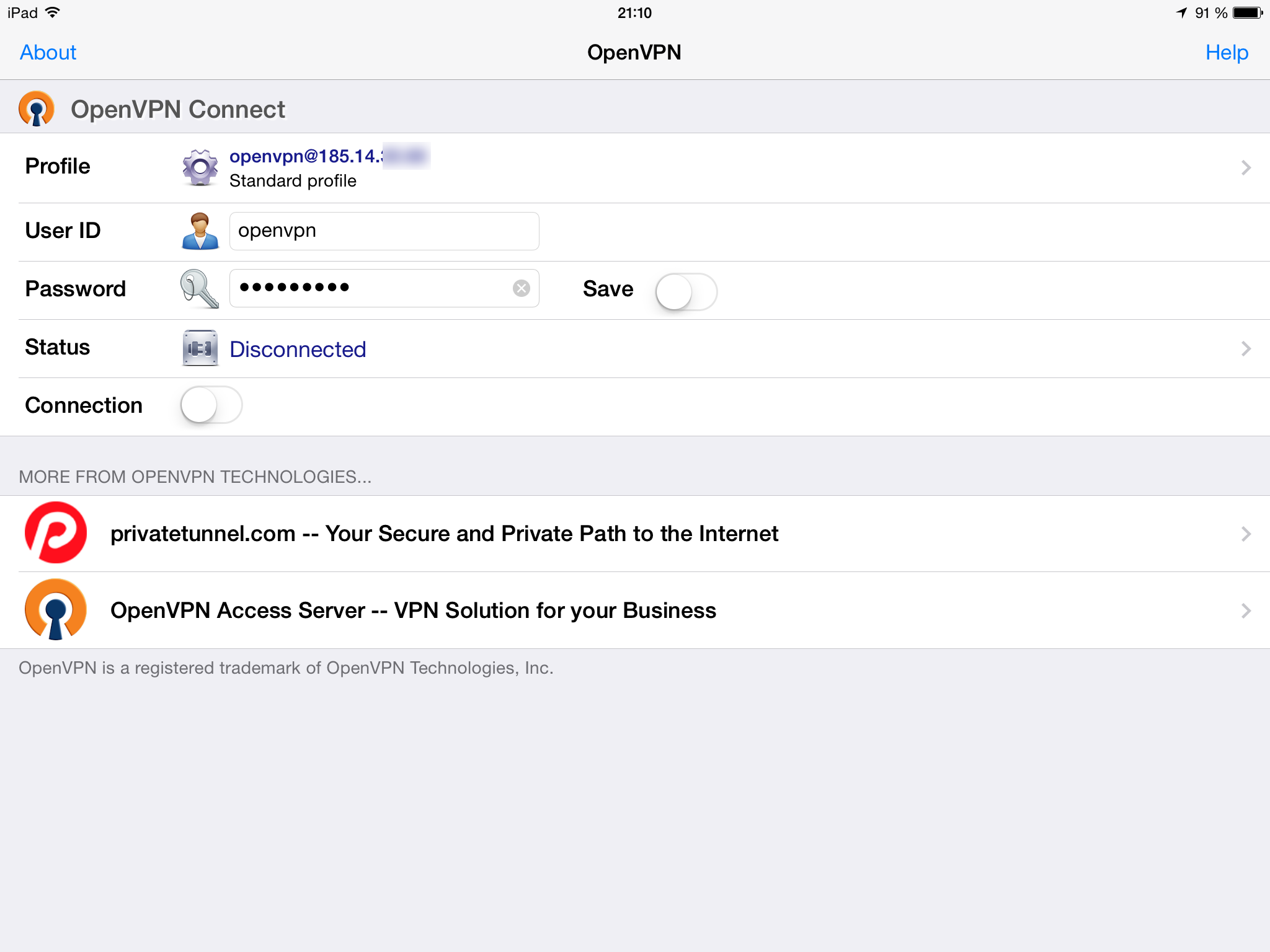
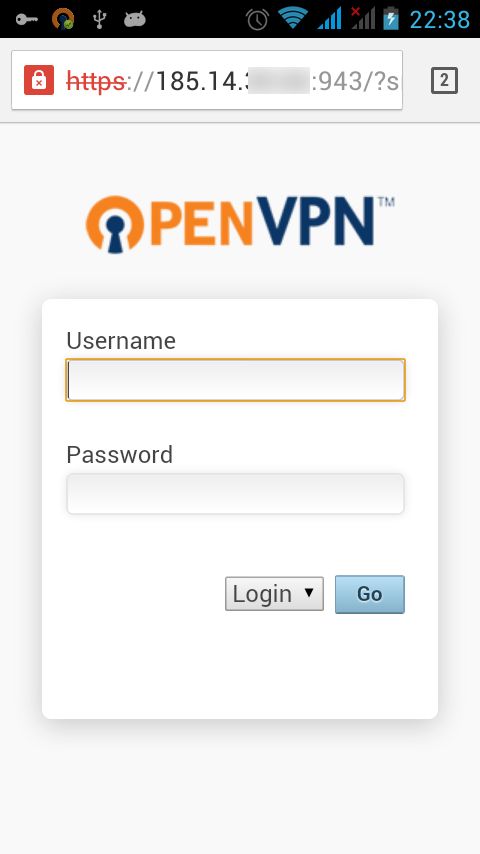
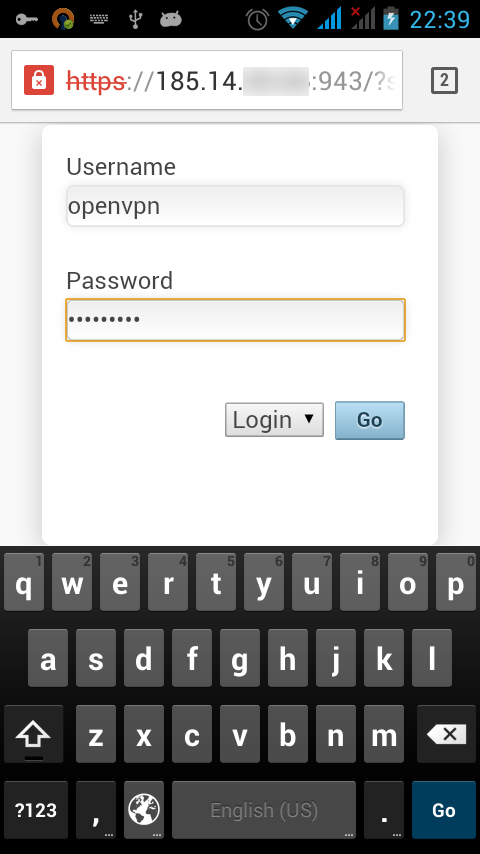
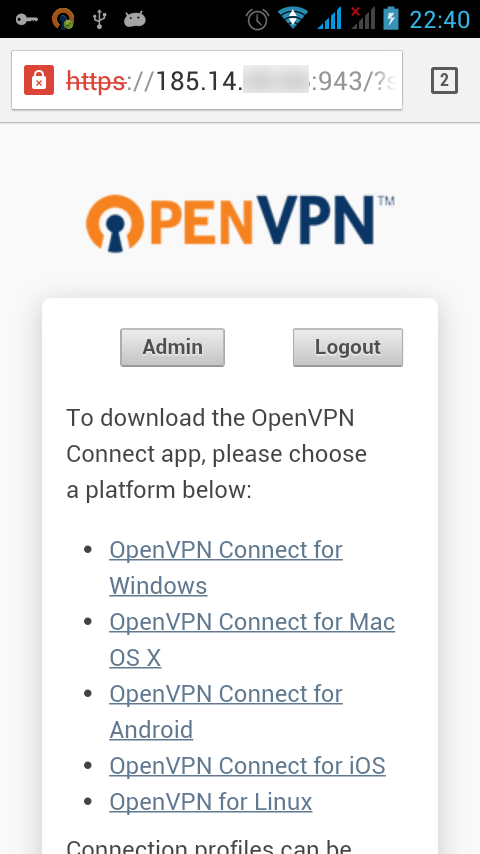
After placing your order, the virtual server will be installed automatically — just wait a few minutes. A message with the IP address of the VDS and access password will be sent to the email address provided during registration. From this moment, you can start using the VPN server — just open the address https://ip-address-vds:943/ on your computer or other device, log in with the login ‘openvpn‘ and the password specified in the activation email. All settings are automatically sent to the OpenVPN client — simply install the corresponding application on your computer or mobile device and upload the user profile.
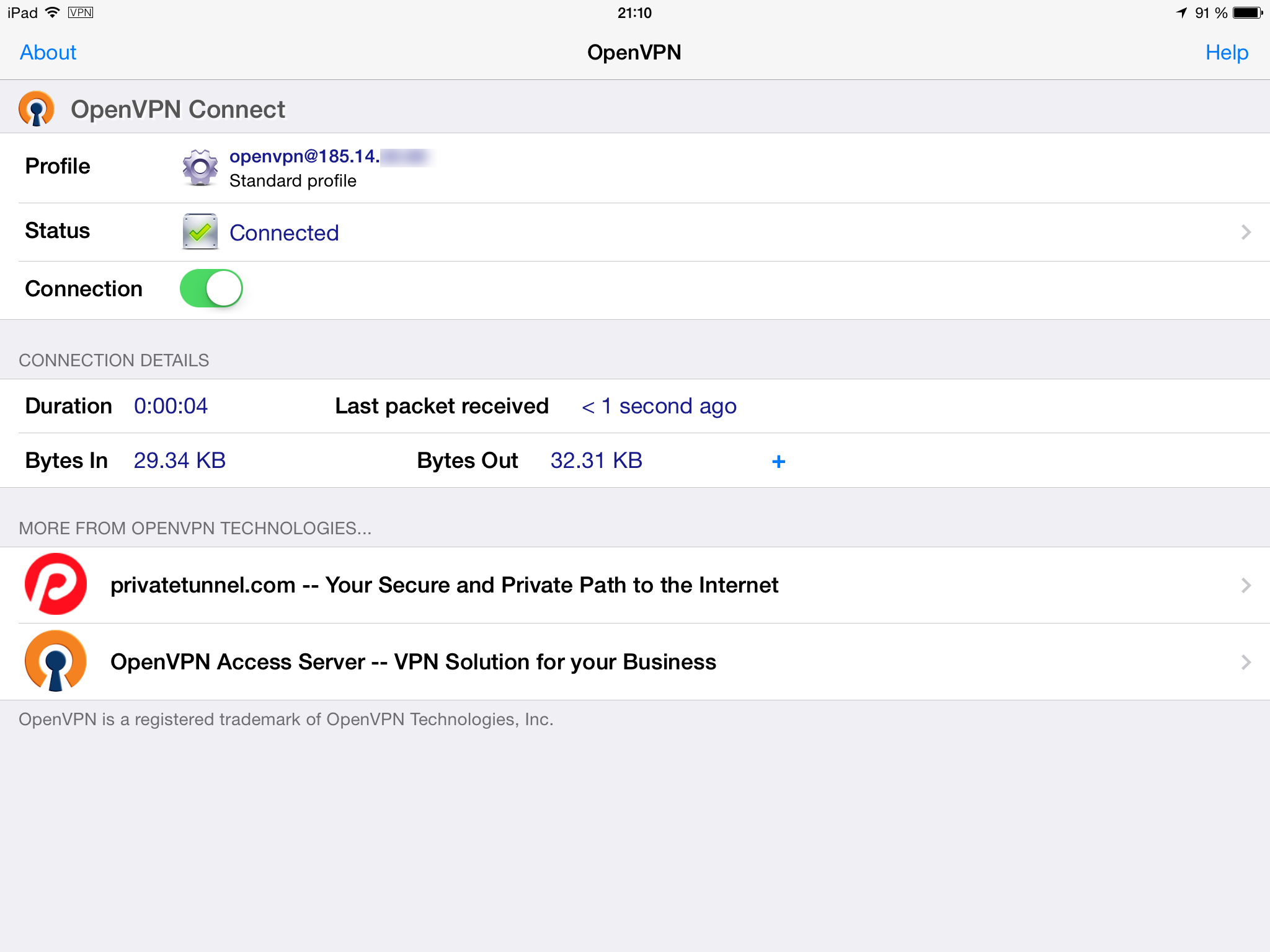
Connecting to OpenVPN AS on an Apple iPad looks as follows:
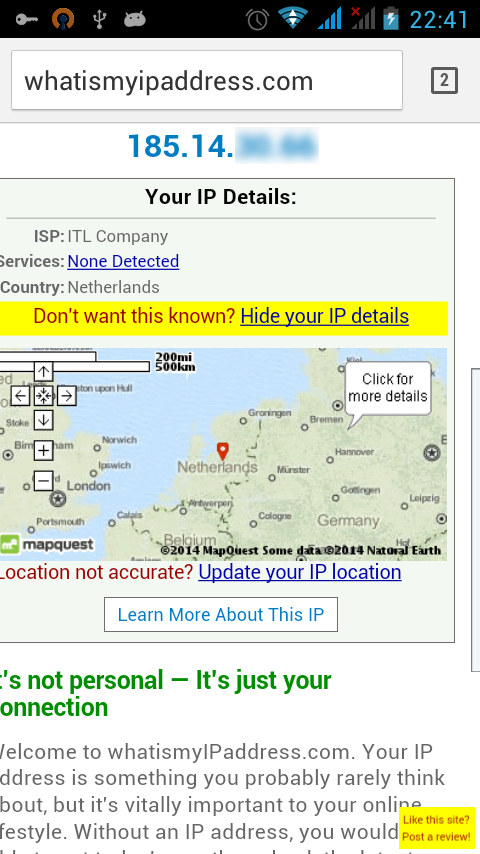
Setting up the OpenVPN client on Android is no more complicated:


We recommend!
Need Help?
Our support team is available 24/7 to assist you with any questions or issues.
Contact Support