A Simple Way to Connect via RDP to Linux VDS
Learn how to easily connect to your Linux VDS via RDP with this guide.
A Simple Way to Connect via RDP to Linux VDS
From time to time, our users face the task of organizing a remote workplace on SSD VDS. Using Windows Server 2008R2 or 2012R2 can be optimal, as we provide official commercial licenses for these operating systems at an attractive price of EUR 12.99 per month. However, to run applications like Chrome, Firefox, or an email client, a free Linux system is often sufficient.
Previously, we wrote about how to prepare an SSD VDS with Ubuntu and RDP connection support. Below is a significantly simpler option for preparing a remote workplace on SSD VDS with CentOS 7.
Getting Started
First — order an SSD VDS in any location and choose CentOS 7 as the operating system. We recommend selecting a plan with 1GB of RAM or more, as modern applications are quite memory-intensive. The installation occurs quickly, and within a few minutes, your virtual server will be activated, and information about the IP address and root password will be sent to your email.
Execute Commands
Now, you need to execute a few commands in the command line. For this, use any SSH client — Windows users usually prefer Putty, while Mac and Linux users can utilize the built-in terminal. Connect to your new SSD VDS and enable the necessary repositories:
rpm -Uvh https://dl.fedoraproject.org/pub/epel/7/x86_64/e/epel-release-7-8.noarch.rpm
rpm -Uvh http://li.nux.ro/download/nux/dextop/el7/x86_64/nux-dextop-release-0-5.el7.nux.noarch.rpm
Next, install the graphical environment and xrdp server:
yum -y groups install "GNOME Desktop"
yum -y install xrdp tigervnc tigervnc-server tigervnc-server-module xorg-x11-fonts-Type1 firefox
Set GNOME as the default environment:
touch /etc/sysconfig/desktop; echo "''PREFERRED=gnome''" > /etc/sysconfig/desktop
Activate the necessary services and disable the firewall:
systemctl enable xrdp.service
systemctl start xrdp.service

systemctl stop firewalld
systemctl disable firewalld
systemctl restart xrdp.service
Connect via RDP
The setup is complete. Start your favorite RDP client, specify the VDS IP address as the remote server, and connect. Windows users can use “Remote Desktop Connection” (Start — Run — type “mstsc” and hit Enter), while Mac users can utilize the free Microsoft Remote Desktop.
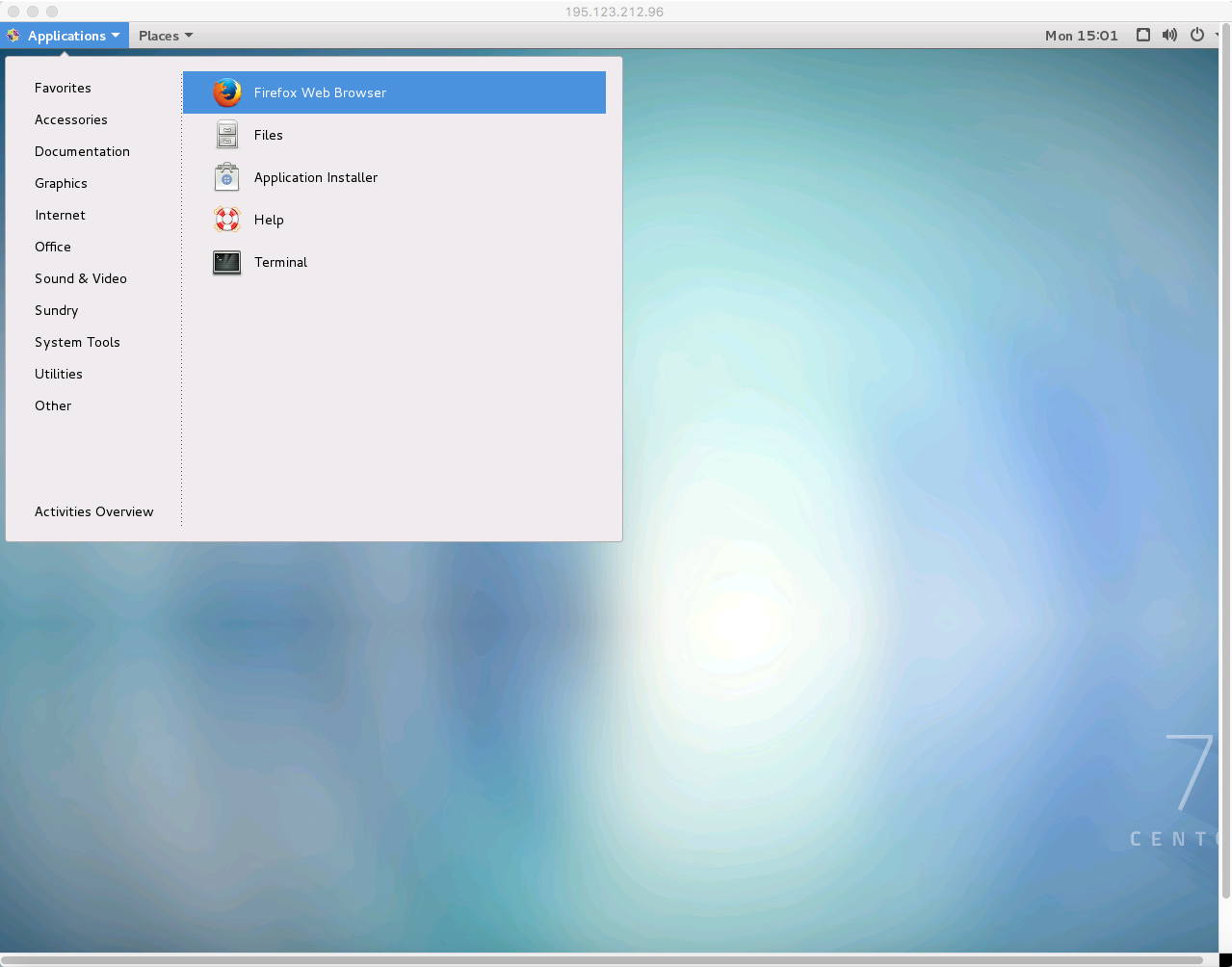
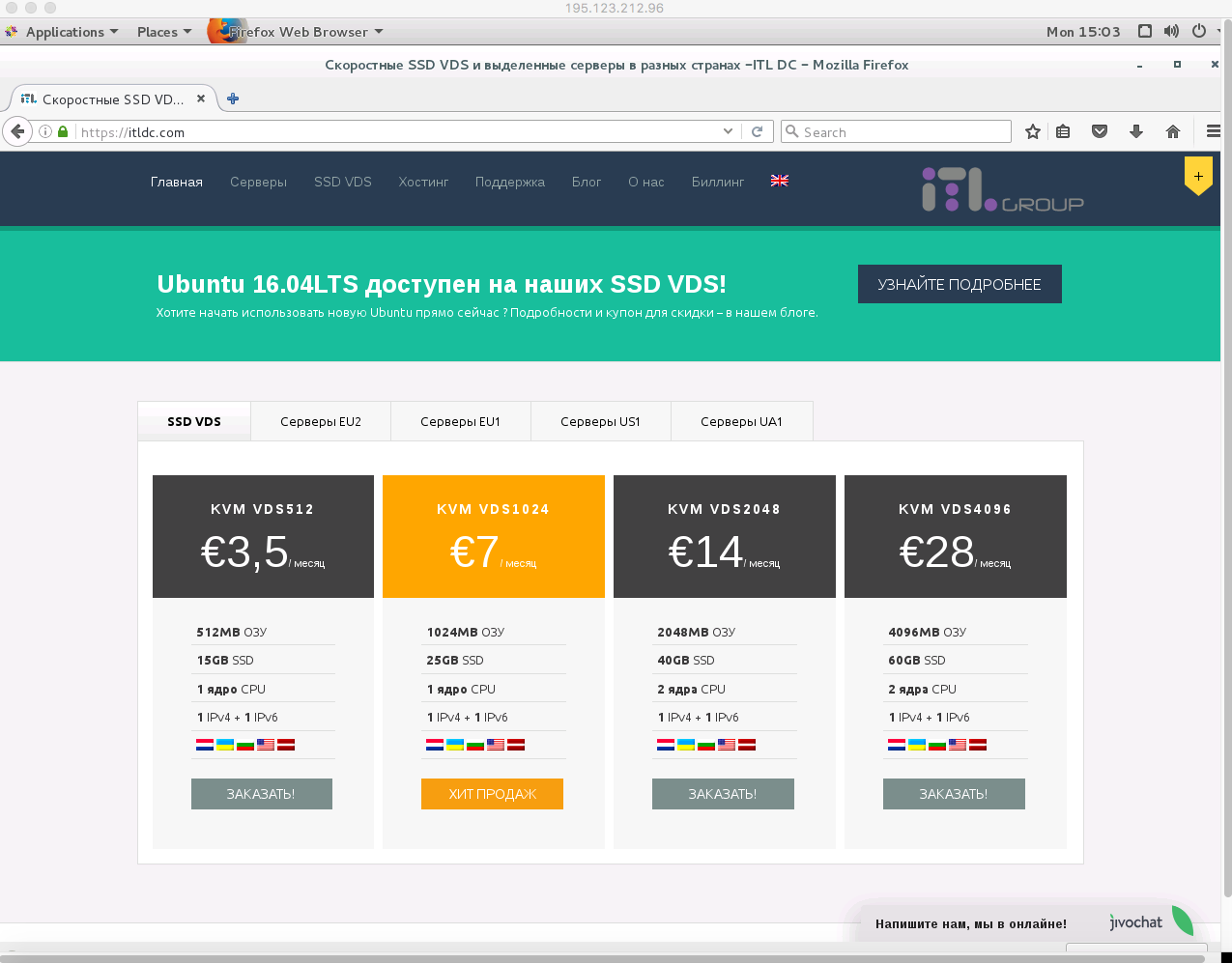
Start Using SSD VDS Now!
Order any virtual server on SSD drives, enter the coupon LINUX-RDP, and a permanent 10% discount will be available! If needed, our technical support team can assist with the installation of the panel and initial server setup. Join us!
Need Help?
Our support team is available 24/7 to assist you with any questions or issues.
Contact Support