Vesta CP — Free Server Control Panel
Explore Vesta CP, a free, user-friendly server control panel that simplifies server management tasks for both beginners and experienced users.
Vesta CP — Free Server Control Panel
It’s no secret that many users of VDS and dedicated servers prefer control panels for administrative tasks. Common options include ISPManager, DirectAdmin, and CPanel, which are all commercial software. Today, we’ll talk about a great free alternative — Vesta Control Panel.
One of the first mentions of Vesta CP can be found on Habr. Currently, Vesta CP is a convenient, full-featured product that can be used for both personal purposes and for providing web hosting services.
Want to start using Vesta right now?
Order any virtual server on SSD disks or dedicated server, enter the coupon VESTA-WEB-PANEL and enjoy a permanent 10% discount! Our technical support can assist with the installation and initial server setup.
Vesta CP has all the capabilities for convenient and quick work without the need for manual editing of configuration files. All of the following are supported immediately after installation:
- Apache + Nginx as a web server
- DNS server
- Mail server, including DKIM configuration, spam filters, and antivirus
- Stable version of PHP
- MySQL database management system 5.5
- Built-in backup functionality
- Task scheduler (cron)
- Server load monitoring
- Fast, multilingual interface
The installation process of the panel is simple and can be carried out even by a beginner. Vesta CP works successfully on CentOS, Ubuntu, and Debian. If you’re undecided, check our note on choosing an OS.
Once you order your SSD VDS or dedicated server and receive access details (IP address and root password), connect to your server using an SSH client (Windows users often choose PuTTY) and run:
curl -O http://vestacp.com/pub/vst-install.sh
bash vst-install.sh
Vesta will automatically install the necessary server applications. After completion, the panel will notify you that it’s ready:
Congratulations, you have just successfully installed the Vesta Control Panel You can log in to Vesta with the following credentials: username: admin password: XXXXXXXX https://1.2.3.4:8083
Visit the specified URL to access the panel interface. To switch the language, go to account properties (click on “admin” in the upper right corner) and select your desired interface language.
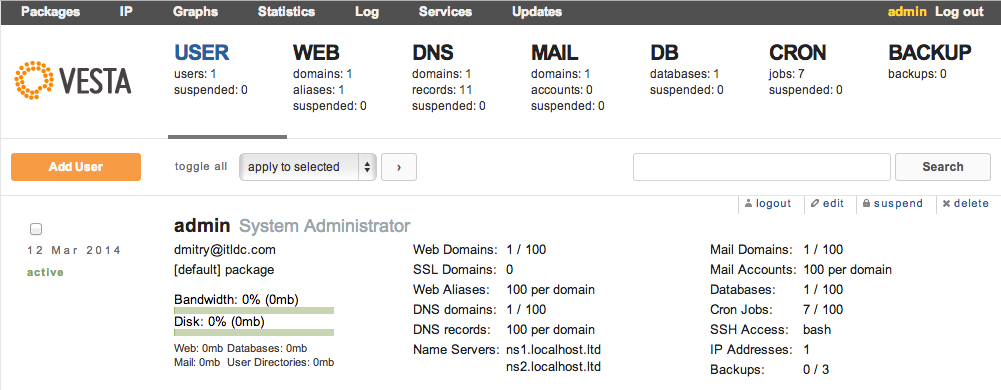
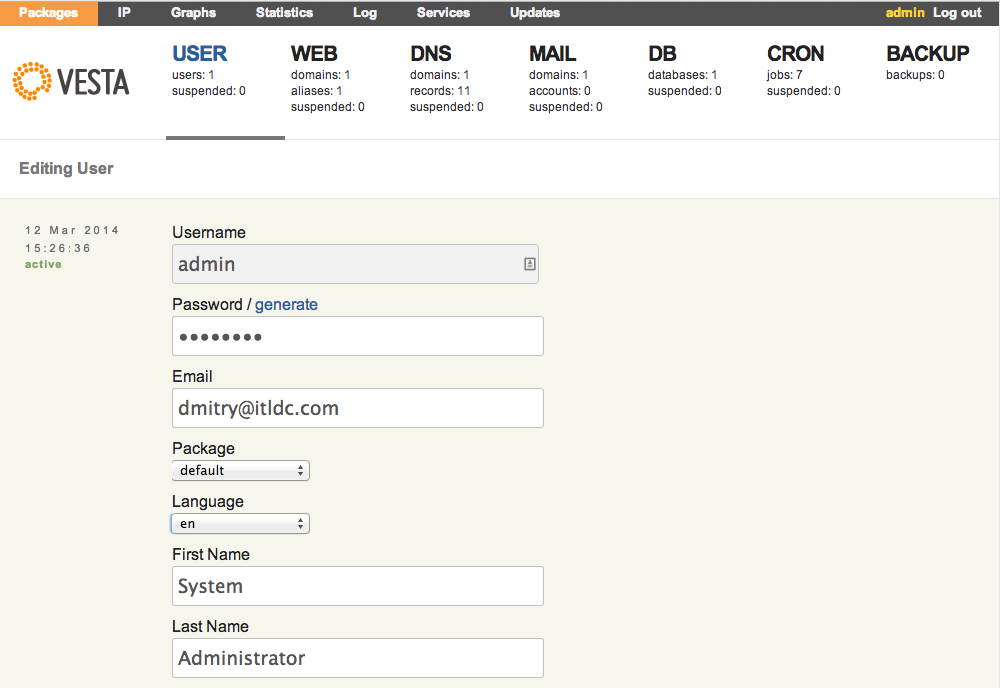
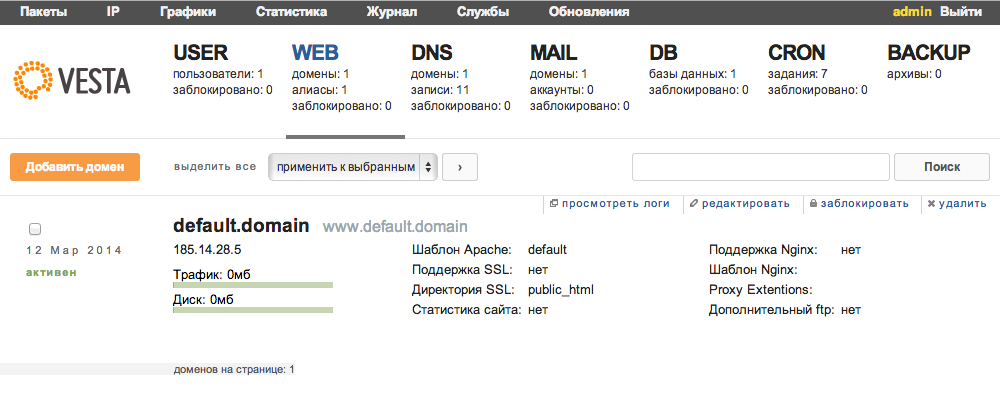

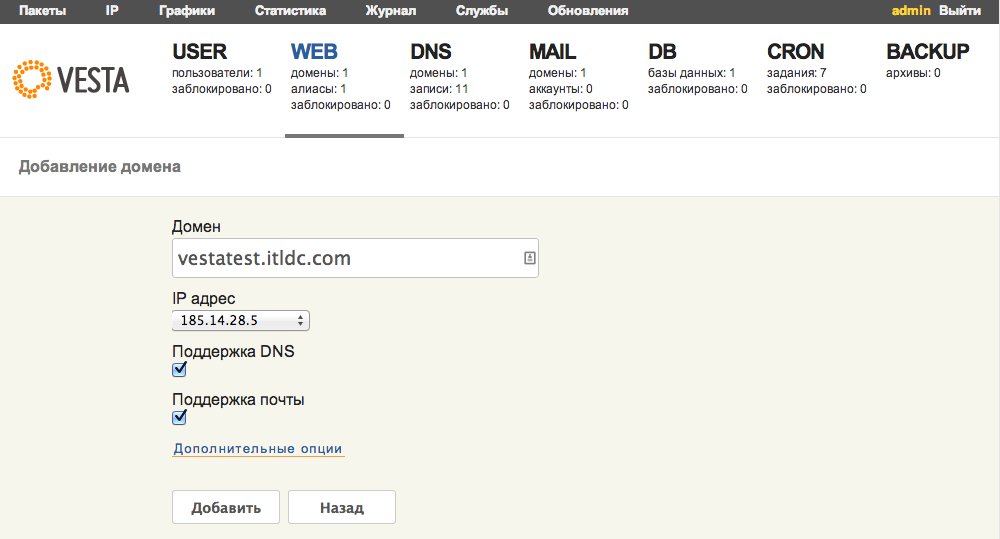
Using the panel is straightforward and intuitive. The official Vesta CP website has excellent documentation, and the forum is available for user support and discussions.
We recommend Vesta CP for its stability, clarity, and ease of use. Our technical support team is happy to assist with installation — just let us know if you need help.
In conclusion, here’s a short screencast from the developer demonstrating the installation and capabilities of Vesta CP.
Need Help?
Our support team is available 24/7 to assist you with any questions or issues.
Contact Support