OpenVPN on VDS in Minutes
Set up OpenVPN on a VDS in just a few minutes with this step-by-step guide. Perfect for beginners and specialists alike.
OpenVPN on VDS in Minutes
We have repeatedly written in our blog about how to set up your own VPN server based on a virtual server. Usually, this involves installing additional packages, configuring address translation, editing configuration files—actions that can seem complex for a beginner and a bit tedious for a specialist 🙂
One of the most popular products for organizing VPN connectivity is called OpenVPN, a universal solution for any application. In addition to the “open” product, which is available in source code, there is also OpenVPN Access Server—essentially the same OpenVPN, but with convenient web management and very simple installation. OpenVPN AS comes with two free licenses—usually enough for personal use.
So, let’s start the timer and begin the installation. Order any virtual server in any desired location (we currently offer SSD VDS in NL, UA, and US). Our choice of operating system is CentOS 6. After a short while, the VDS will be ready, and we will proceed to install OpenVPN. Using any SSH client, we authorize on the VDS and immediately change the root password:
```bash
passwd root
```
Now let’s install OpenVPN AS and specify a password for the user that will be used for both VPN connections and management:
```bash
wget http://swupdate.openvpn.org/as/openvpn-as-2.0.11-CentOS6.x86_64.rpm
rpm -i openvpn-as-2.0.11-CentOS6.x86_64.rpm
passwd openvpn
```
Actually, the server part configuration is complete. Doesn’t that seem quick and very easy?
Now, let’s take your favorite Apple iPad or another device (Windows, MacOS, Linux, Android, and iOS are supported) and open the browser to the address https://ip-address-vds:943/. Enter the login openvpn and the chosen password, then install the OpenVPN client via the links provided, and afterwards—download the profile that compiles the settings for the encrypted connection. By default, the profile is immediately sent to the OpenVPN client, so it is usually sufficient to add the connection to the list of active ones and enter the password. The setup and connection process is also not difficult for other devices and operating systems.
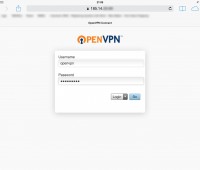
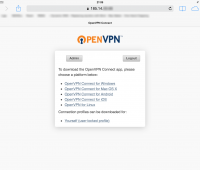
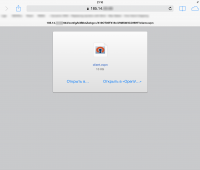
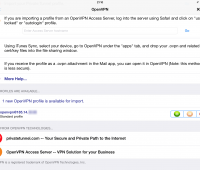
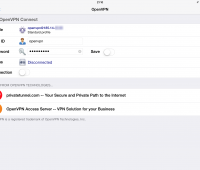
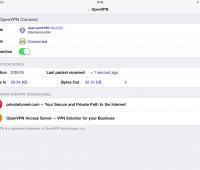
My colleague set up the connection on his Android smartphone. It turned out to be no more complicated than on the iPhone/iPad; see the screenshots below.
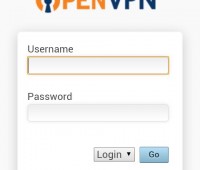
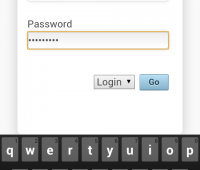
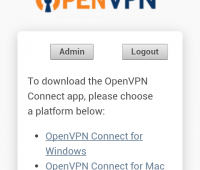
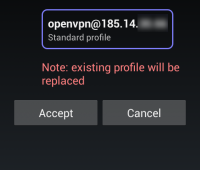
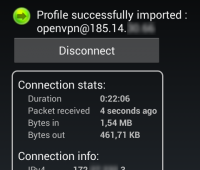

A proven and convenient solution—we recommend it!
Need Help?
Our support team is available 24/7 to assist you with any questions or issues.
Contact Support